Connect Claude Code, Cursor or any MCP client once per computer, for all your projects, then let it read issues and mark fixes.
Connect your coding agent
Your coding agent (Claude Code, Cursor, GitHub Copilot in VS Code, or any app that supports MCP) can read your Astra Test issues as fix briefs, fix the code, and mark each issue Ready to verify. You check the fix and close it. See the public overview at astratest.dev/mcp.
You set this up once per computer. One connection reaches all your projects, or the ones you pick, and the agent works out which project it's in from the repo.
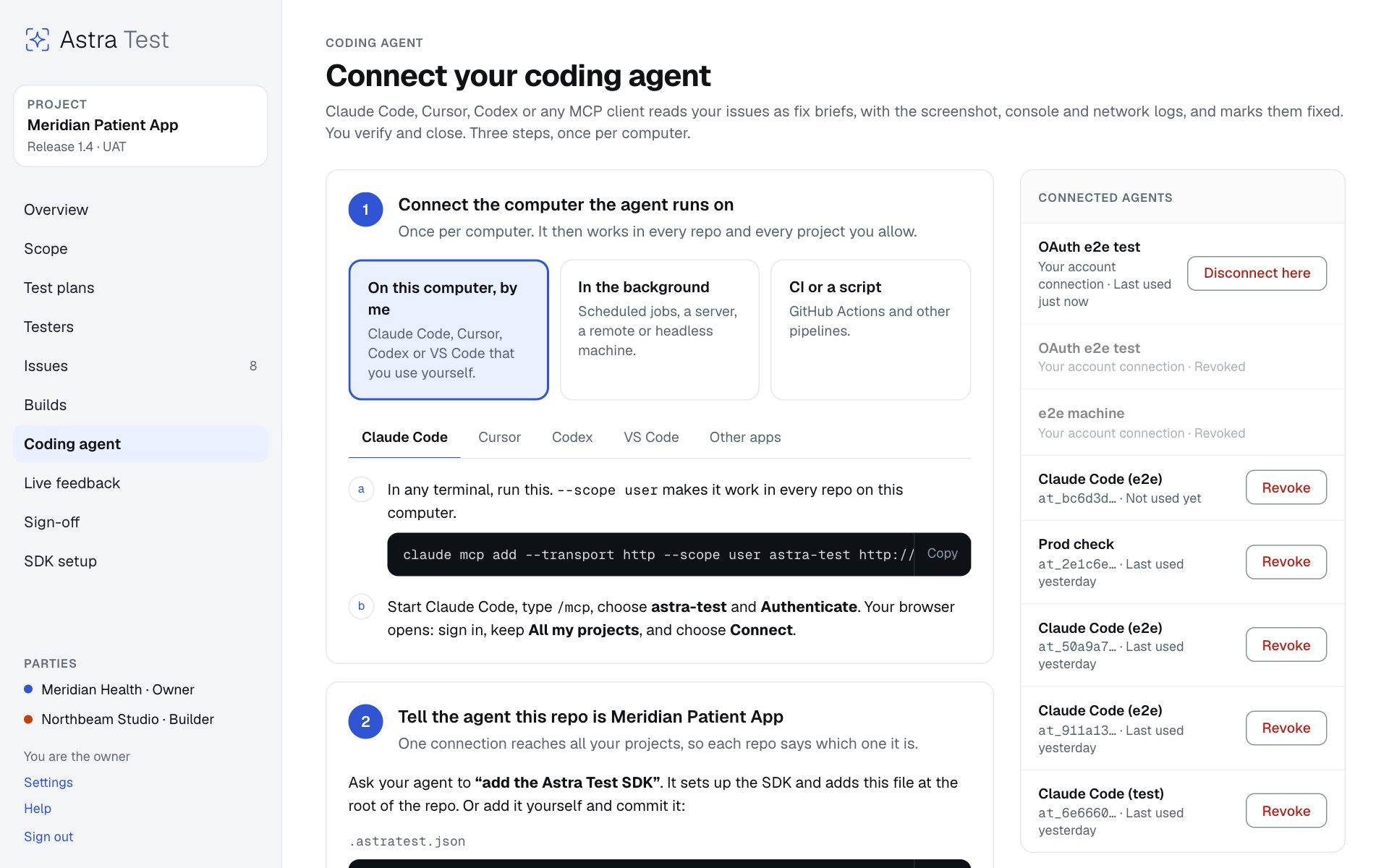
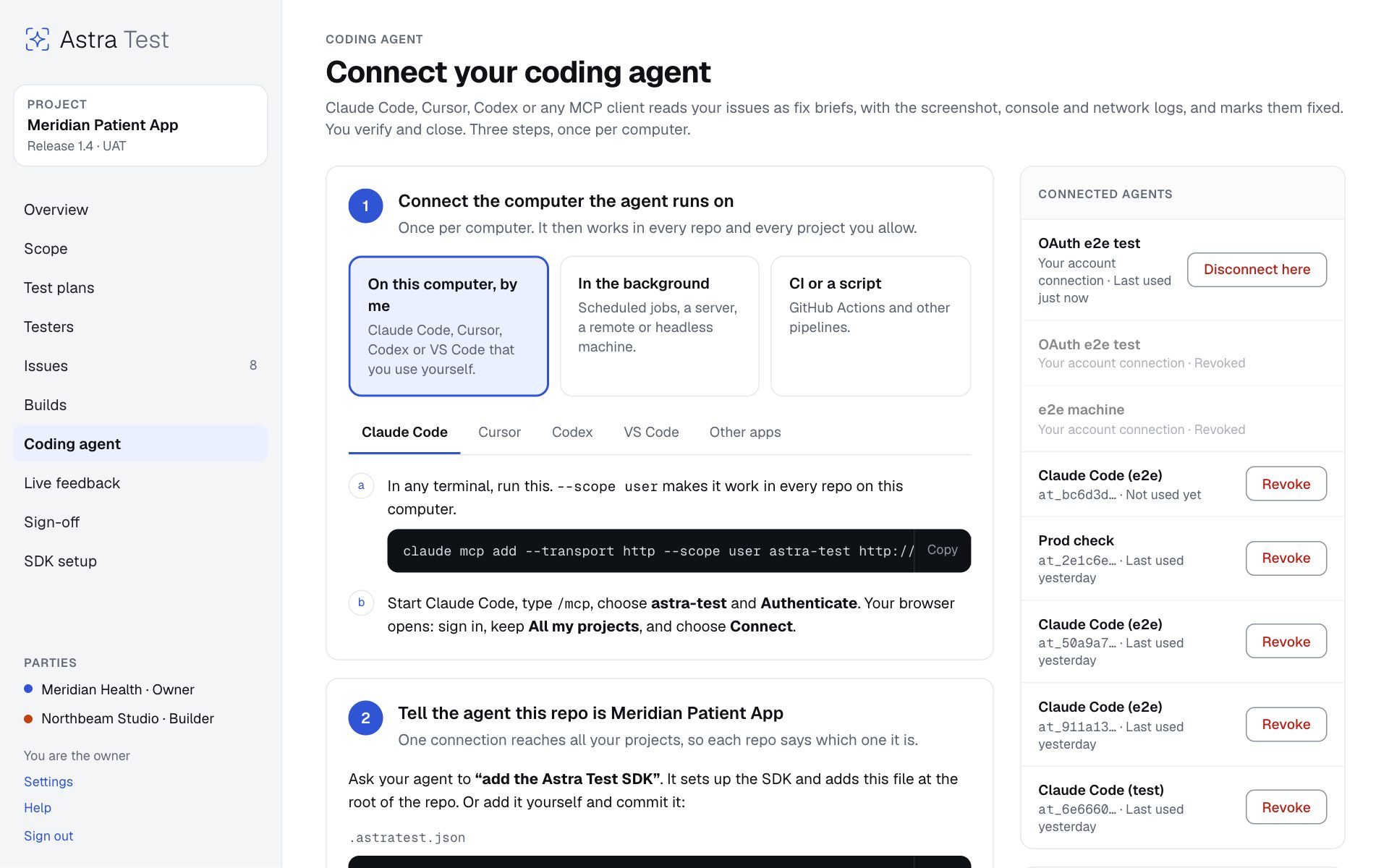
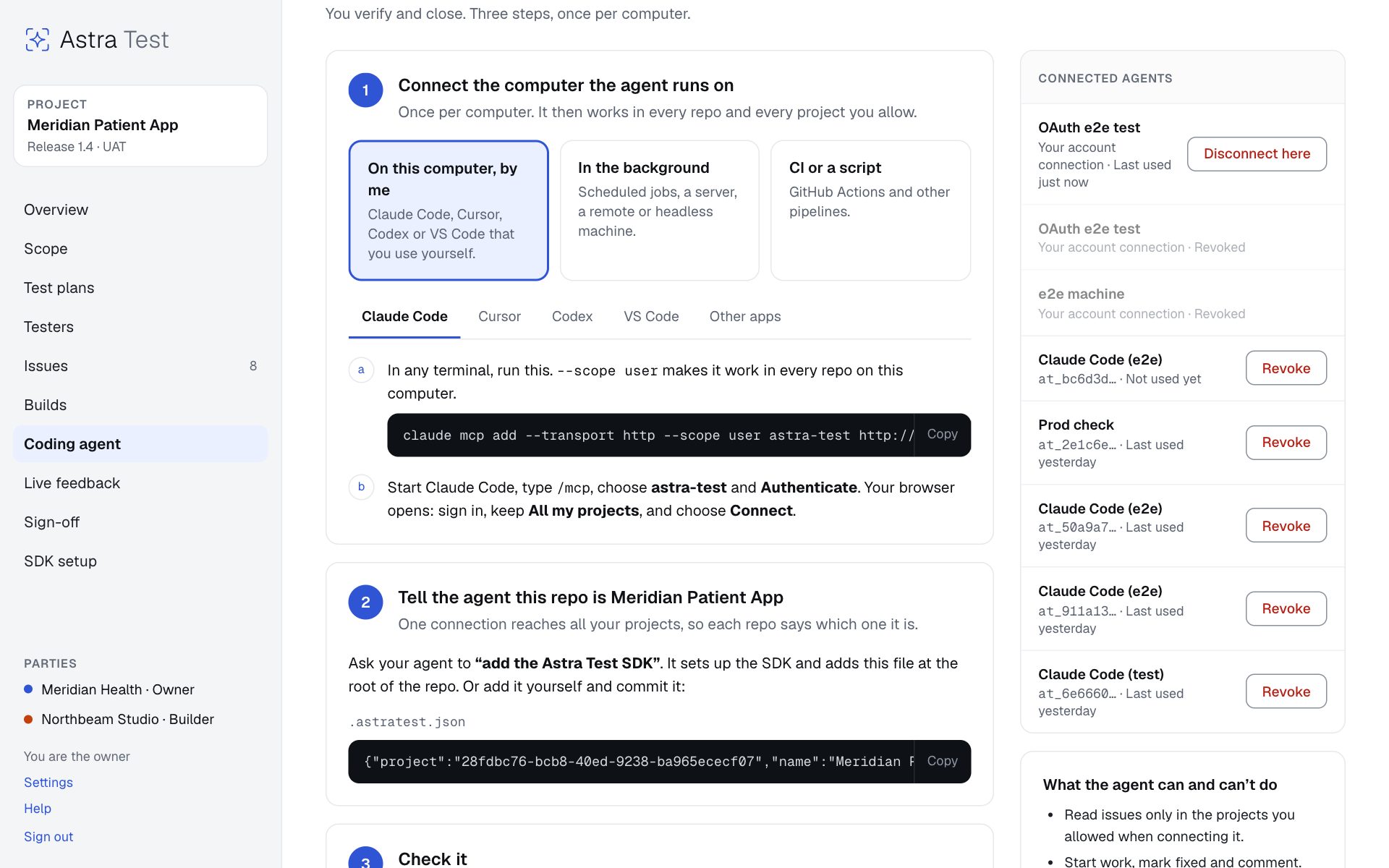
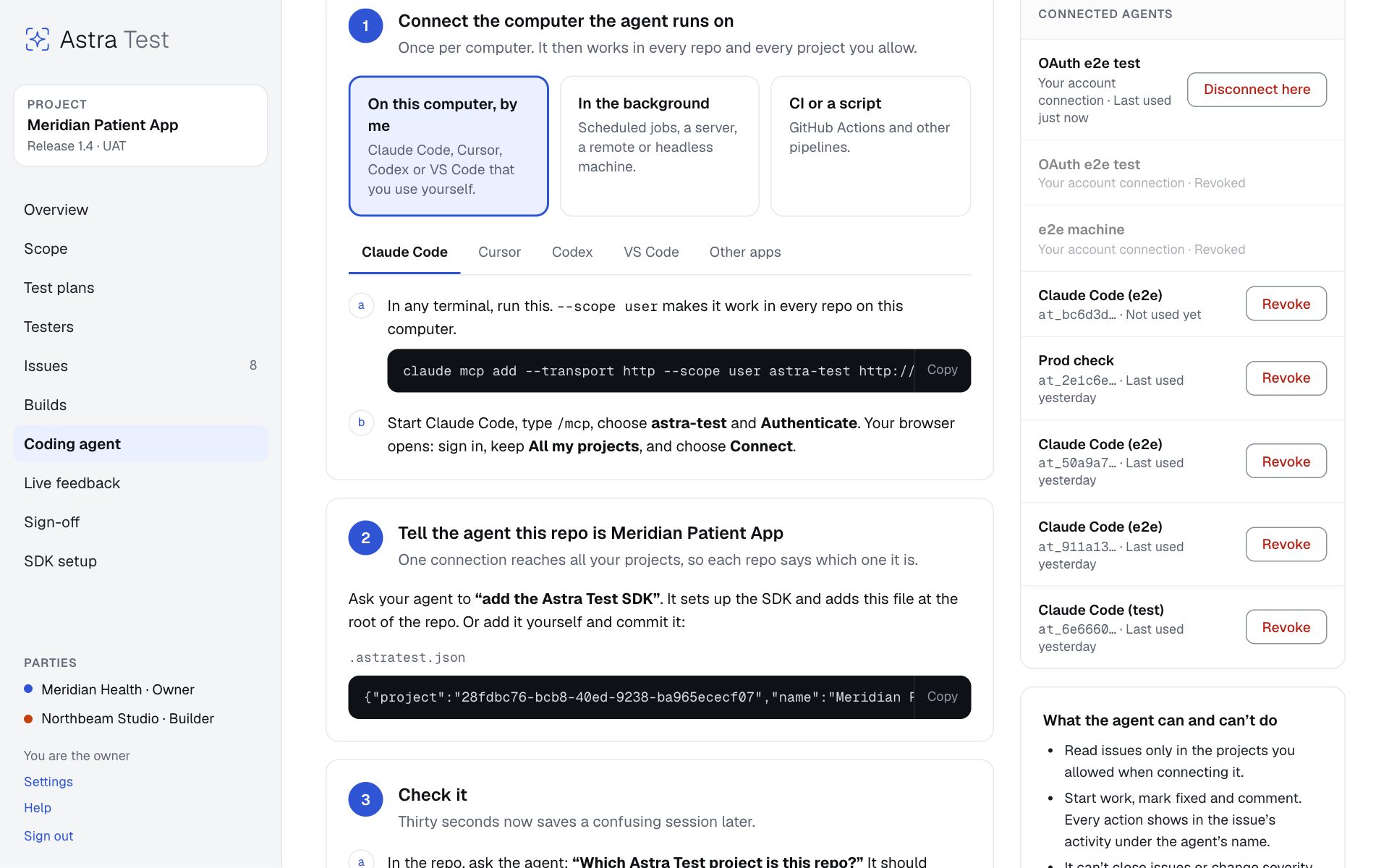
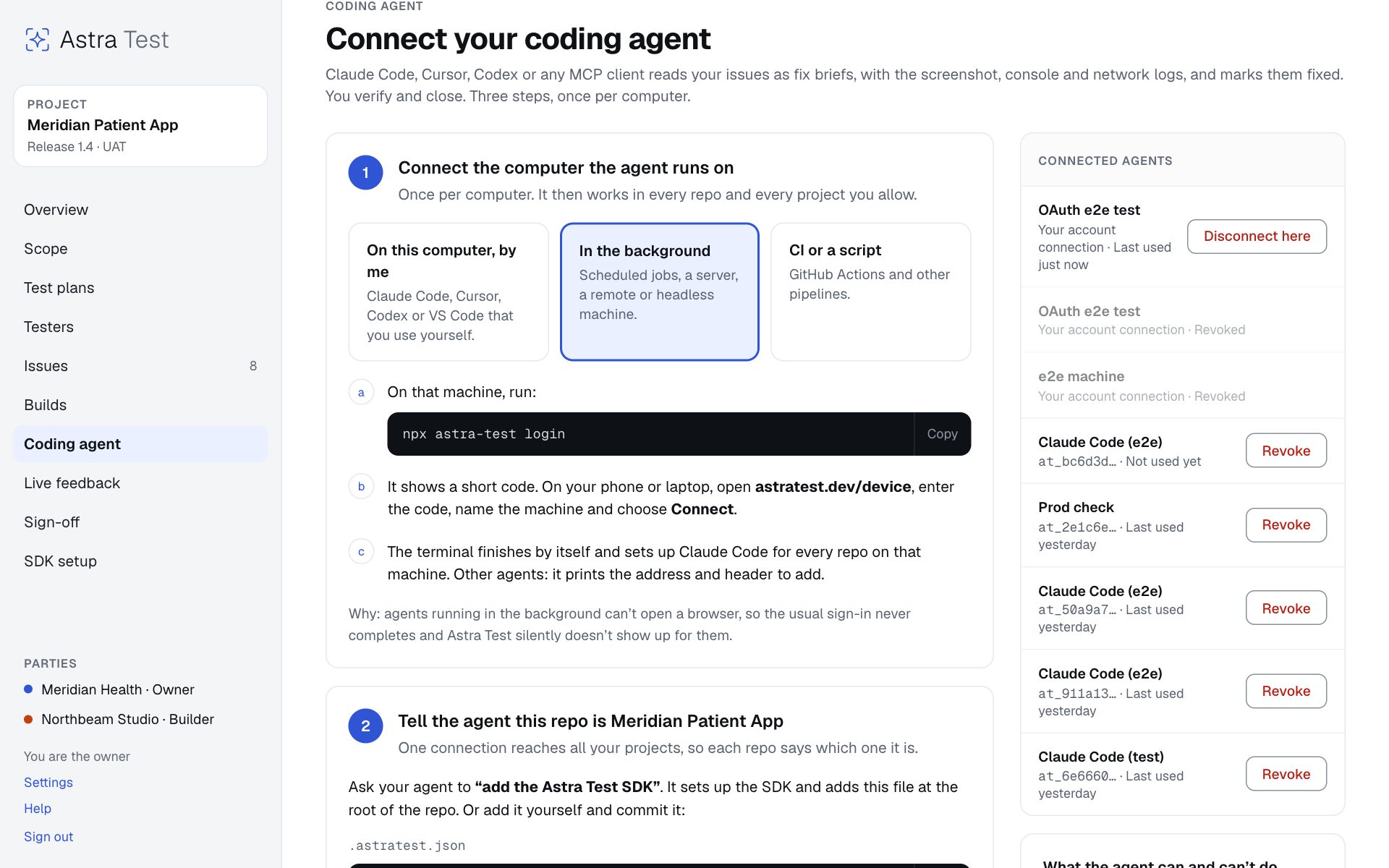
Before you start#
- You need to be the Owner, Integrator or Builder on the project. Testers can't connect agents.
- Know where your agent runs:• On this computer, by me: you use Claude Code, Cursor or VS Code yourself.• In the background: scheduled jobs, a server, or a remote or headless machine.• CI or a script: GitHub Actions or another pipeline.
Step 1: Connect the computer#
Where: any project → Coding agent, /p/[id]/agent, step 1
On this computer, by me#
Pick your agent's tab, then:
- Claude Code: run
claude mcp add --transport http --scope user astra-test https://astratest.dev/v1/mcpin any terminal.--scope usermakes it work in every repo. Start Claude Code, type/mcp, choose astra-test and Authenticate. - Cursor: choose Add to Cursor, then Connect next to astra-test in Cursor's Tools & MCP settings.
- Codex: run
codex mcp add astra-test --url https://astratest.dev/v1/mcp, thencodex mcp login astra-test. - VS Code: choose Add to VS Code and install it for your user, then Allow when Copilot first uses it.
- Other apps: add a remote MCP server (Streamable HTTP) at
https://astratest.dev/v1/mcp, and choose Connect when the app asks.
Your browser opens Astra Test:
- Sign in, if you aren't already.
- Under Which projects can it work on?, keep All my projects (it includes projects you create later), or choose Only the projects I pick and tick them.
- Choose Connect. Astra Test confirms it's connected and says what to ask your agent first, then hands over to the agent, which shows its own "you can close this window" page.
In the background#
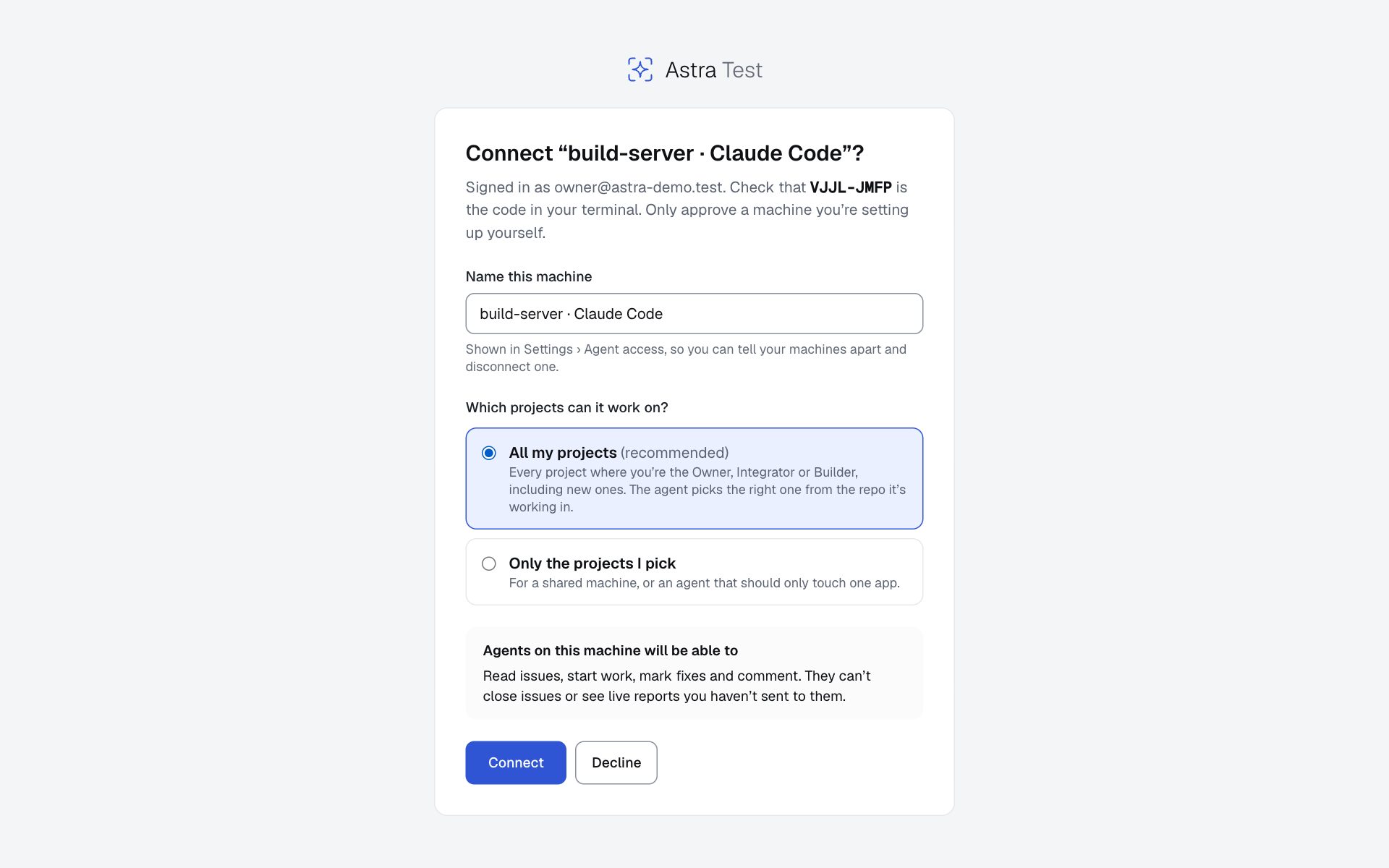
Agents that run in the background can't open a browser, so the usual sign-in never finishes and Astra Test quietly doesn't appear for them. Use device login instead:
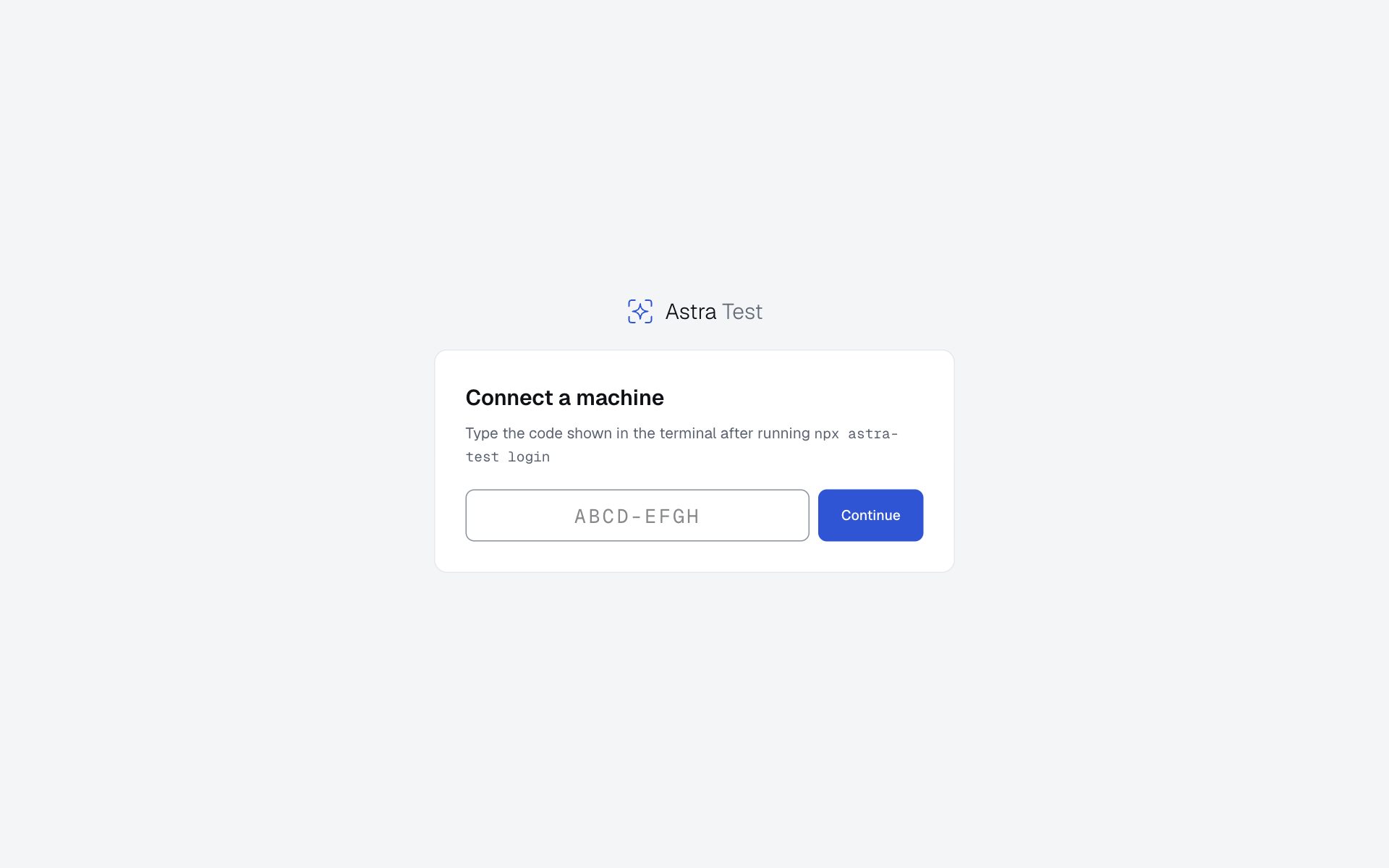
- On that machine, run
npx astra-test login. - It shows a short code, like
KVTD-HMBX. On your phone or laptop, open astratest.dev/device and enter it. - Check the code matches, give the machine a name you'll recognise, pick the projects, and choose Connect.
- Back in the terminal, it finishes by itself: it saves the connection (only your user can read it) and sets up Claude Code for every repo on that machine. For other agents it prints the address and header to add.
Check it any time with npx astra-test status.
CI or a script#
- Open Settings › Agent access and choose Create a token for CI or a script.
- Give it a Name, pick the projects, and choose when it Expires.
- Choose Create token, and copy the token straight away: it's shown only once.
- Store it as a secret in your pipeline, and add Astra Test to the agent as an HTTP MCP server at
https://astratest.dev/v1/mcpwith the headerAuthorization: Bearer <token>.
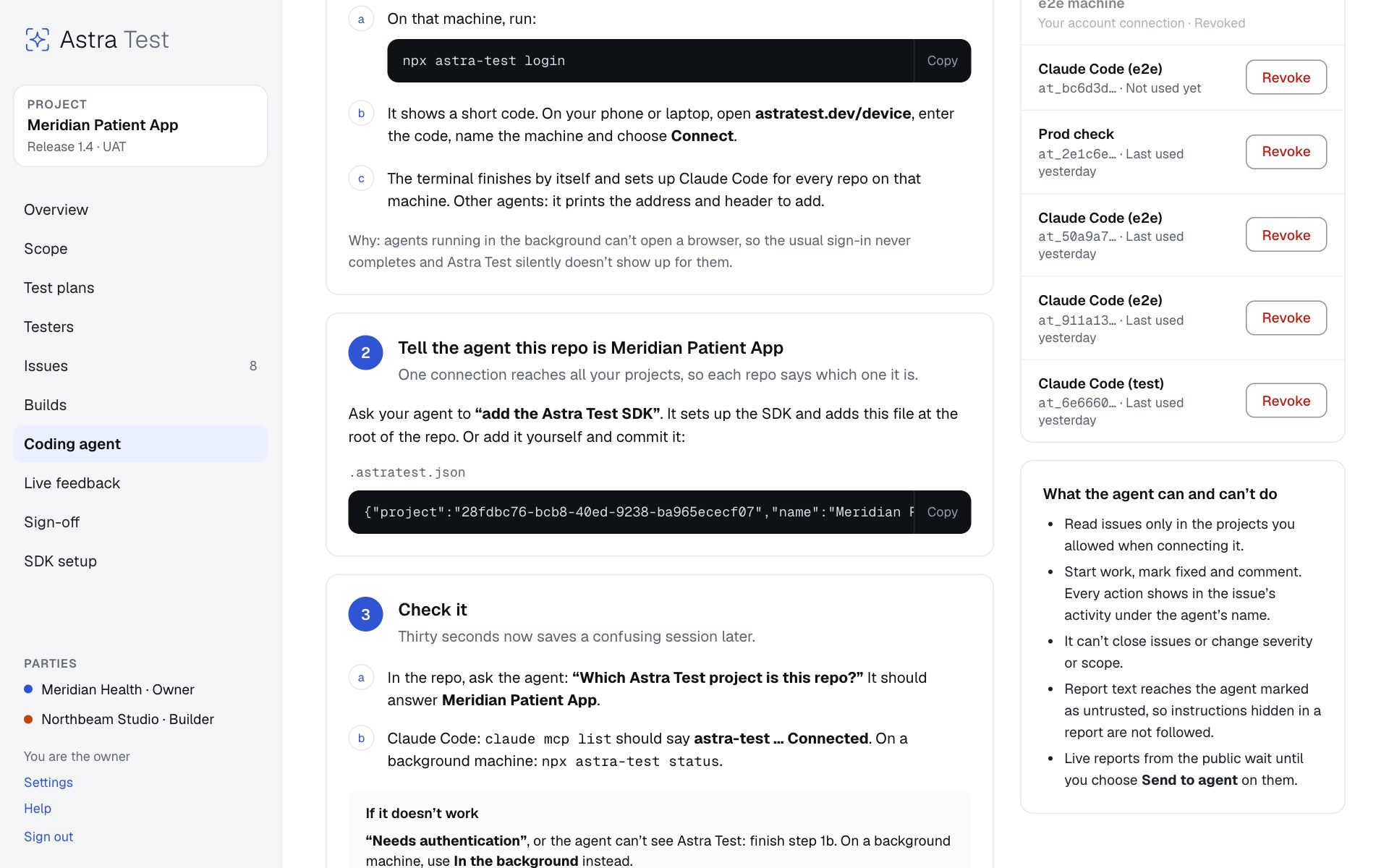
Step 2: Tell the agent which project the repo is#
Where: Coding agent, step 2
One connection reaches several projects, so each repo says which one it belongs to, in a small file at its root called .astratest.json:
{ "project": "<project id>", "name": "Patient app" }- The easiest way: ask your agent to "add the Astra Test SDK". It sets up the SDK and adds this file for you.
- Or copy the file from step 2 on the Coding agent page, which has your project's id filled in, and commit it.
The agent also recognises the project from the SDK key (pk_test_…) in your code. If it can't tell, it asks you. It never guesses.
Step 3: Check it#
Where: Coding agent, step 3
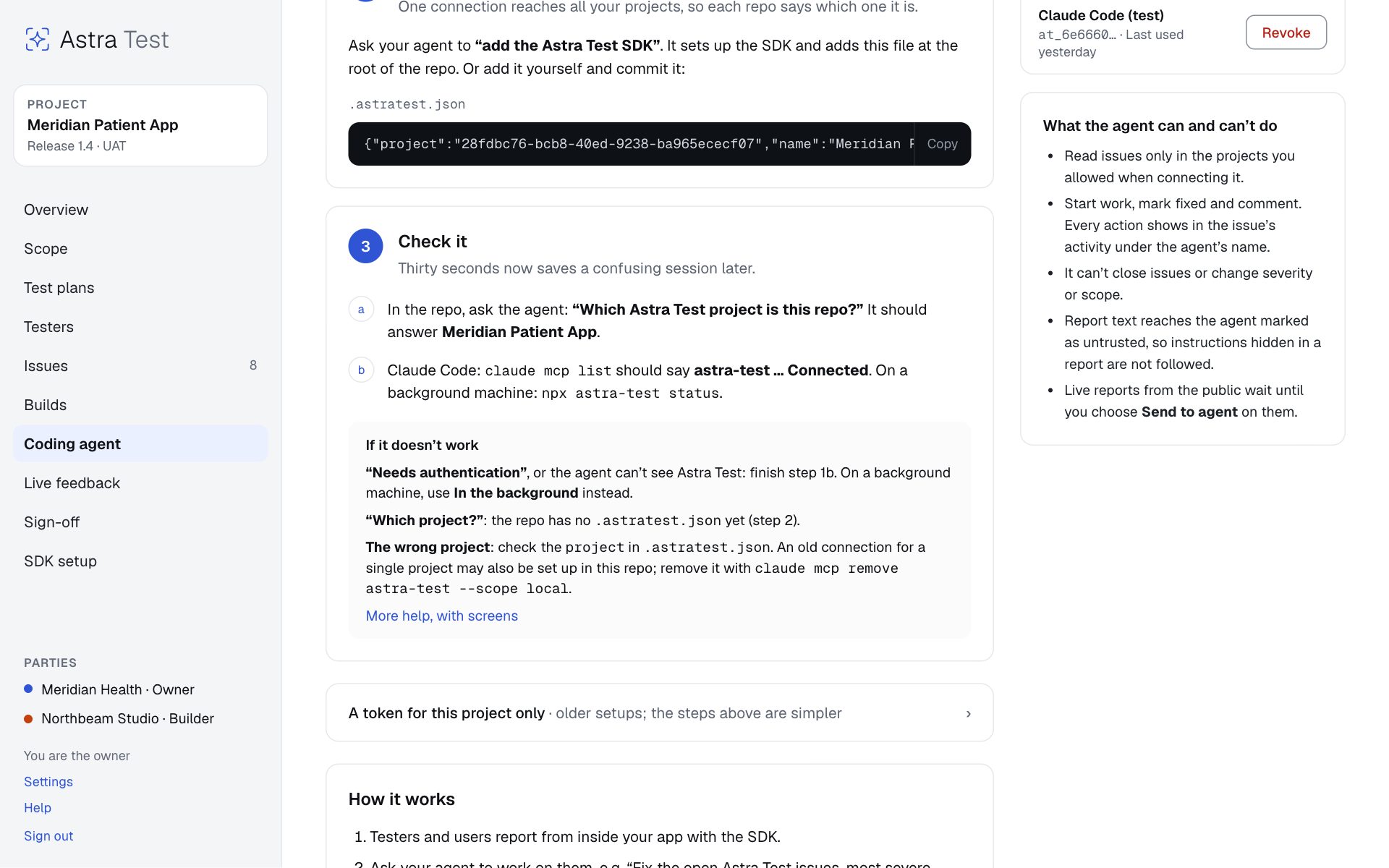
- In the repo, ask the agent: "Which Astra Test project is this repo?" It should answer with your project's name.
- In Claude Code,
claude mcp listshould say astra-test … Connected. On a background machine, runnpx astra-test status.
If it doesn't work#
| What you see | What to do |
|---|---|
| Needs authentication, or the agent can't see Astra Test | Finish step 1 (the Authenticate or Connect part). On a background machine, use In the background instead. |
| The agent asks Which project? | The repo has no .astratest.json yet. Do step 2. |
| It works on the wrong project | Check project in .astratest.json. An older connection for one project may also be set up in that repo: remove it with claude mcp remove astra-test --scope local. |
| This connection is for "…" only | That repo is connected to a single project. Connect the computer as in step 1 instead. |
| expired or revoked | It was disconnected in Settings › Agent access, or its token expired. Connect it again. |
Use it#
Ask your agent, for example: "Fix the open Astra Test issues, most severe first."
It has these tools:
| Tool | What it does |
|---|---|
list_issues | Lists issues waiting for work, most severe first. |
get_issue | Gives the full brief: the reporter's words, steps, expected and actual, the requirement, Astra's guess at the cause, failing network calls, console errors, device, build, activity and the screenshot. |
start_issue | Moves the issue to In progress and shows an Agent working chip on the board card so the team can see it's being investigated. The chip clears when the agent calls mark_fixed or when anyone changes the status. |
mark_fixed | Moves it to Ready to verify, with a summary, the commit or PR, the version it ships in, and an optional proof screenshot URL. |
add_comment | Asks a question on the issue. |
create_issue | Files a new issue the agent discovered while working. The issue is tagged Agent filed with the agent's name. If the agent was working on another issue at the time, it links back with parent_issue_id. The agent can include its reasoning, which appears in the AI classification card. |
list_projects | Shows the projects the connection reaches. |
sdk_setup | The steps to add the Astra Test SDK to the app, with your key. |
sdk_status | Checks the SDK key and shows the builds and reports that arrived. |
Everything the agent does appears in the issue's Activity under the agent's name.
See and disconnect connections#
Where: Settings › Agent access, /settings
Every computer, machine and token connected to your account is listed with how it was connected (Signed in from an agent, Device login or Token), the projects it reaches, and when it was last used.
- Disconnect cuts it off everywhere, straight away.
- To cut one off from a single project only, open that project's Coding agent page and choose Disconnect here under Connected agents.
Older setups: a token for one project#
Coding agent → A token for this project only still works, for setups made before account connections. New setups should use step 1 instead: it's one connection for all your projects.
On a phone#
You can approve a device login on your phone: open the link the terminal shows, or astratest.dev/device, and enter the code.