For solo makers and vibe coders. Build alone, collect feedback from testers and real users, and let your AI coding agent fix what they report.
Maker guide
You're a Maker when you build the app yourself, usually with an AI coding agent such as Claude Code, Cursor or any MCP client. There's no agency and no client: you are both, so you can do everything the Owner and the Builder can do.
The loop:
- Your testers and users report a problem from inside your app.
- Your coding agent reads the report as a fix brief, fixes the code, and marks the issue fixed.
- You check the fix and close it.
Try it first with the guided demo#
Where: Home page, Or try the real app, guided, /demo/start
- Choose Or try the real app, guided (or Try the guided demo further down). You get a sample project of your own in a few seconds, with no sign-up and no email.
- In the sample app, pick a time and press Confirm booking. It fails. Press Report, point at what went wrong and choose Send report.
- Choose Open your report to see the screenshot, steps, browser and console that came with it.
- Choose Send it to the coding agent. The agent picks it up, fixes it and marks it Ready to verify, with a note on what it changed.
- Press Pass and close. Choose Start free to make your own account, or Keep exploring.
The demo sends no emails and can't invite anyone. Choose Skip the tour to look around on your own; Resume the tour brings the guide back. Demo projects are deleted after a day.
Get started#
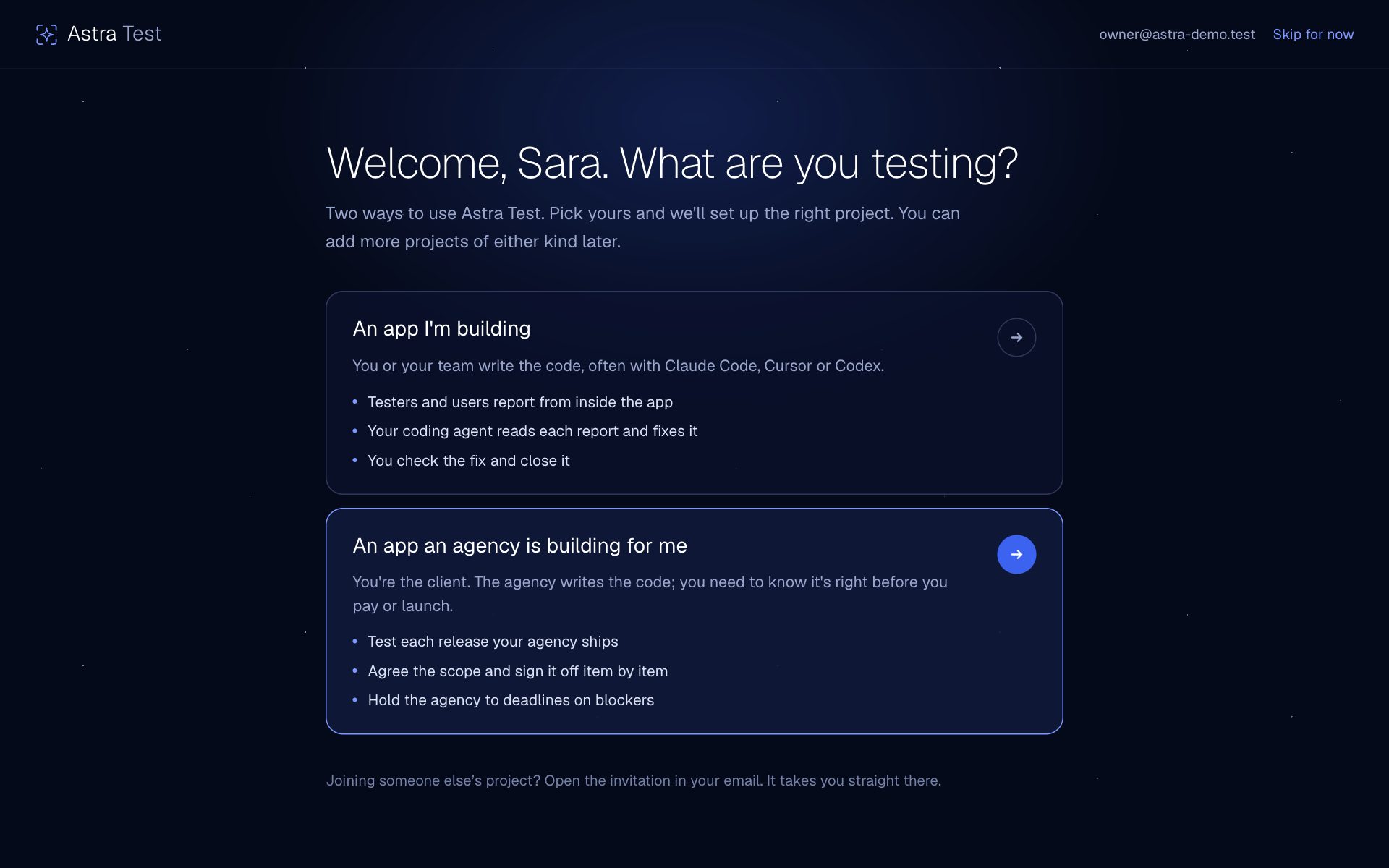
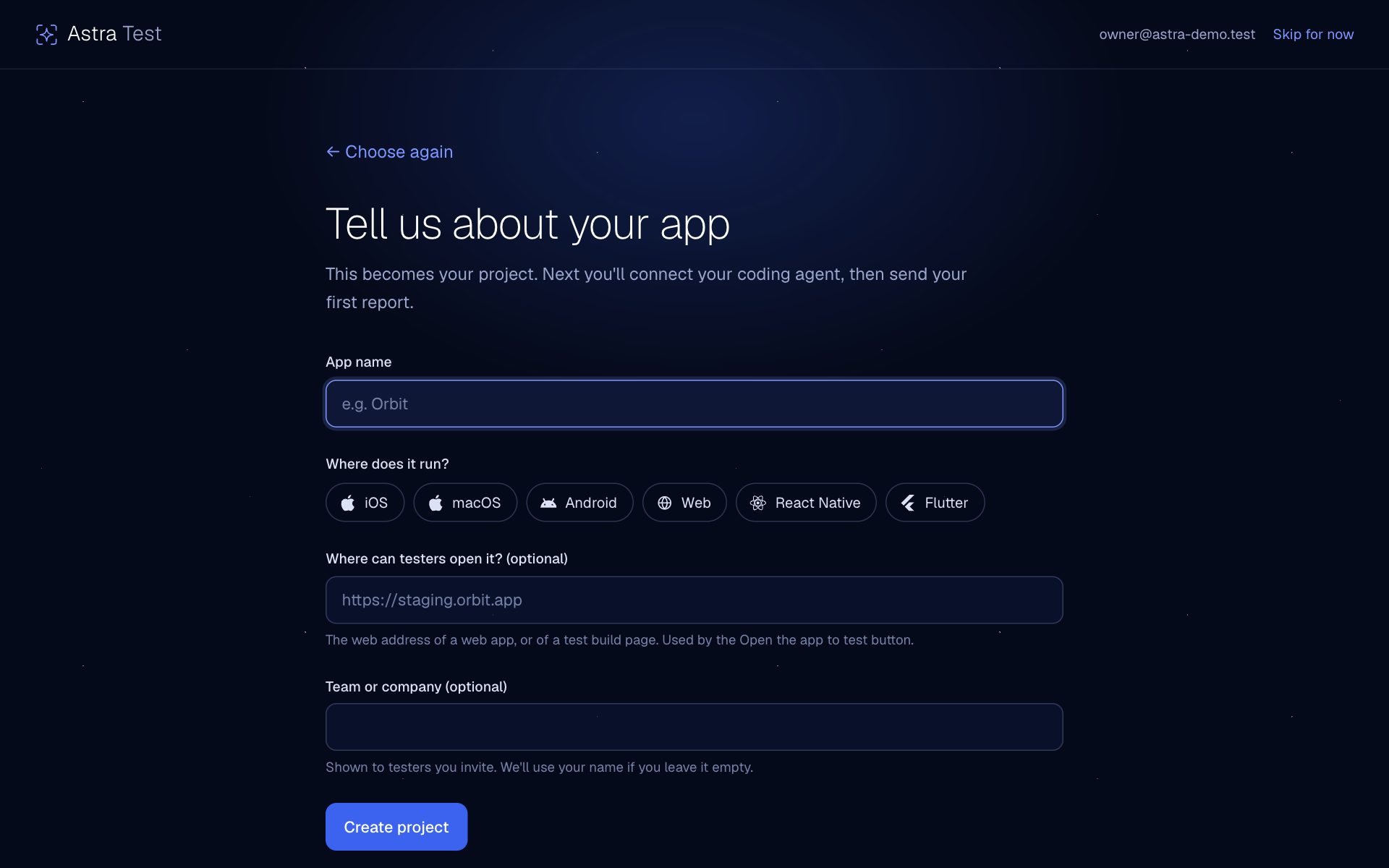
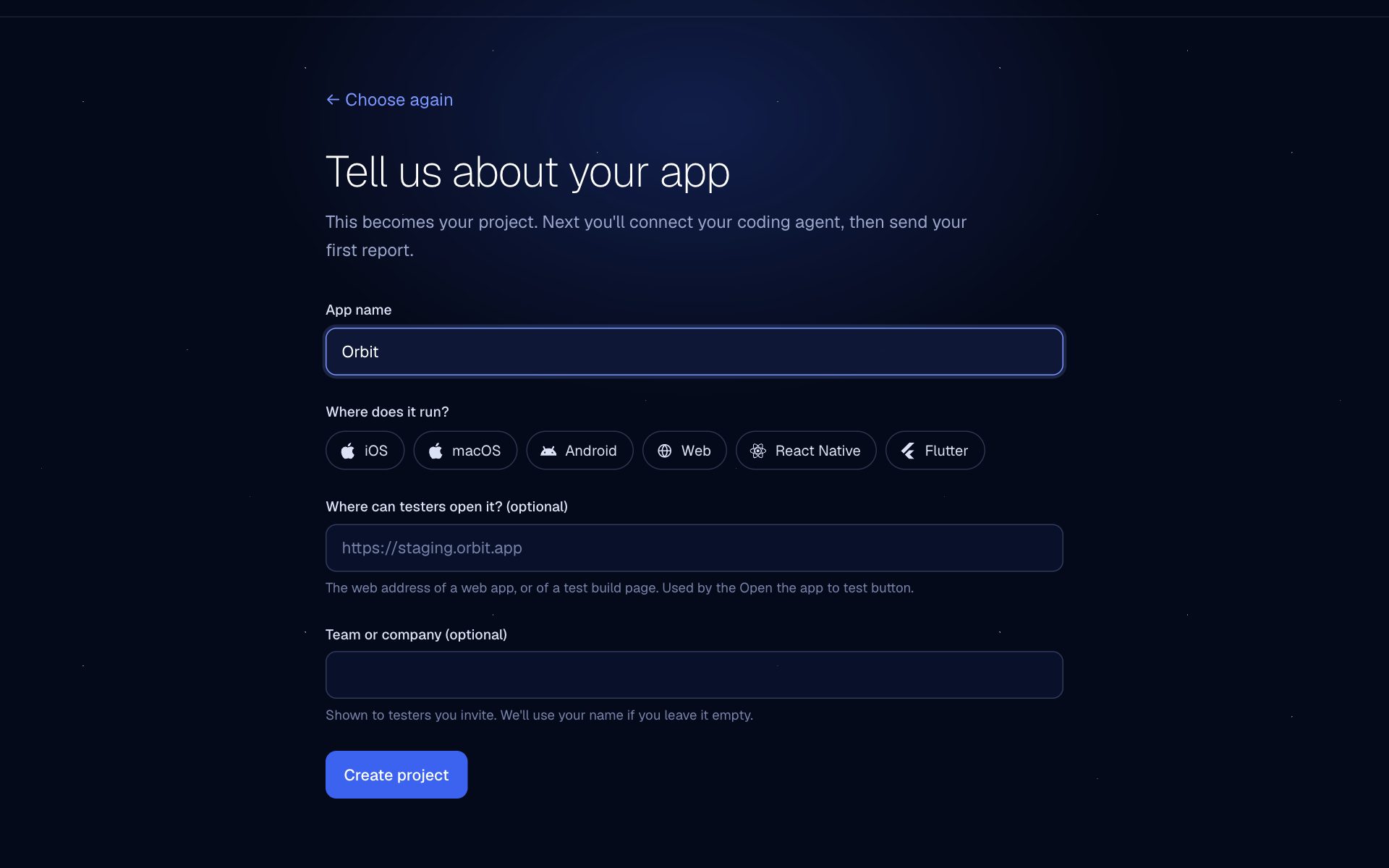
Create an account at /login?mode=signup with Continue with GitHub, Continue with Google or your email (see Sign in or create an account). The first time you sign in, Astra Test asks What are you testing? (/welcome).
- Choose An app I'm building.
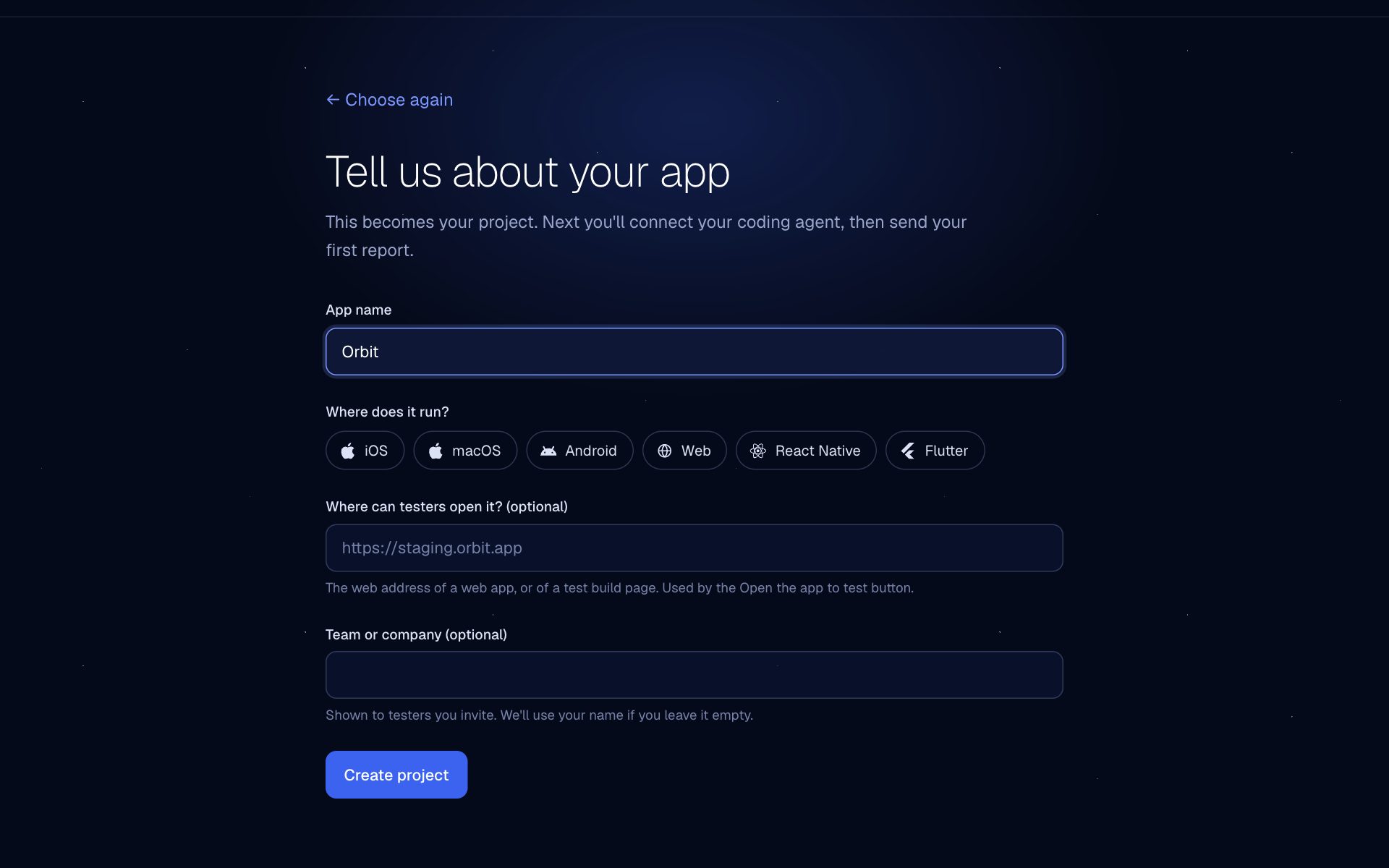
- Enter the App name, pick where it runs, and optionally Where can testers open it? (the web address used by Open the app to test) and your Team or company. Choose Create project.
- Connect your coding agent. Under Which coding agent do you use? pick yours. Three steps follow; the one to do now is lit up, and each folds away with a tick when done. Copying a command or the
.astratest.jsonticks its step off; choose I've signed in after signing in. The panel at the bottom turns green with Your coding agent is connected as soon as the agent signs in. Choose Continue, or Skip for now. - Send your first report. Choose Ask your coding agent (copy the prompt into it) or Add it yourself (a few lines per platform, with your test key filled in). Then report something small from inside the app; the panel turns green with Your first report arrived. Choose Continue, or I'll do this later.
- The last screen shows what's done. Choose Open your project, or Invite testers.
Until the project has a few reports, its Overview shows Getting started: connect your coding agent, add the SDK to a test build, send your first report, invite a tester. Each ticks itself off; choose one to go to its page.
Create a solo project#
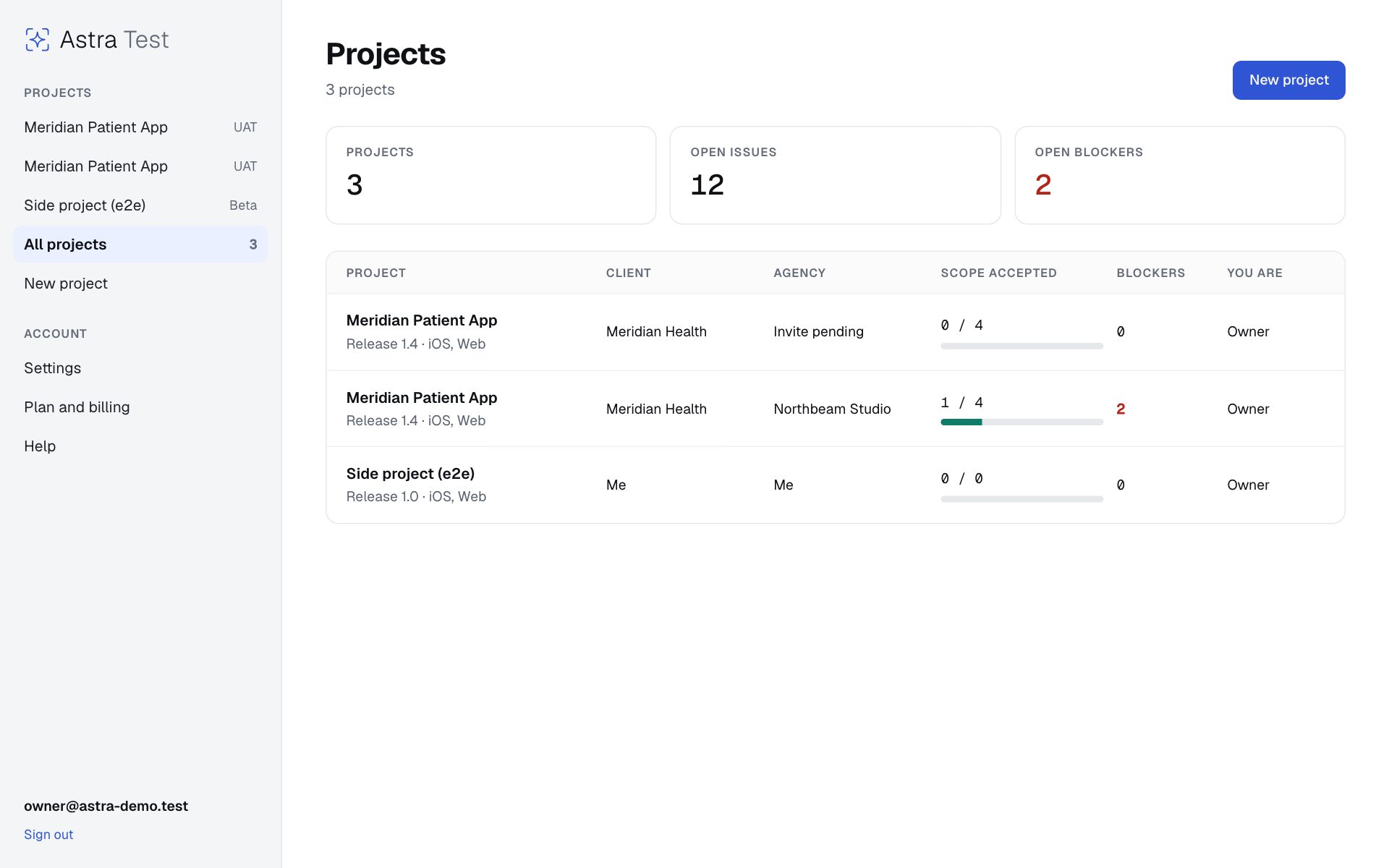
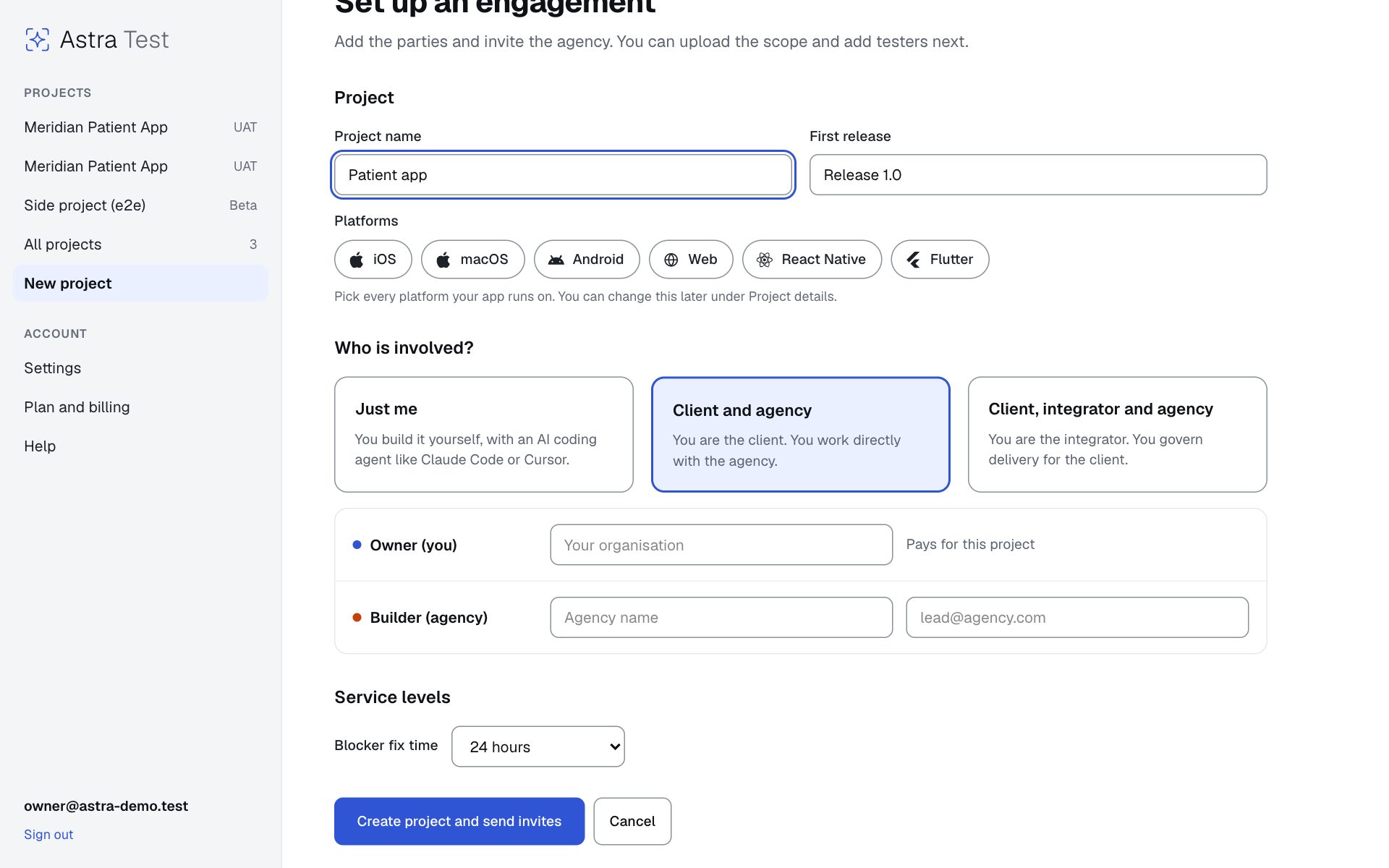
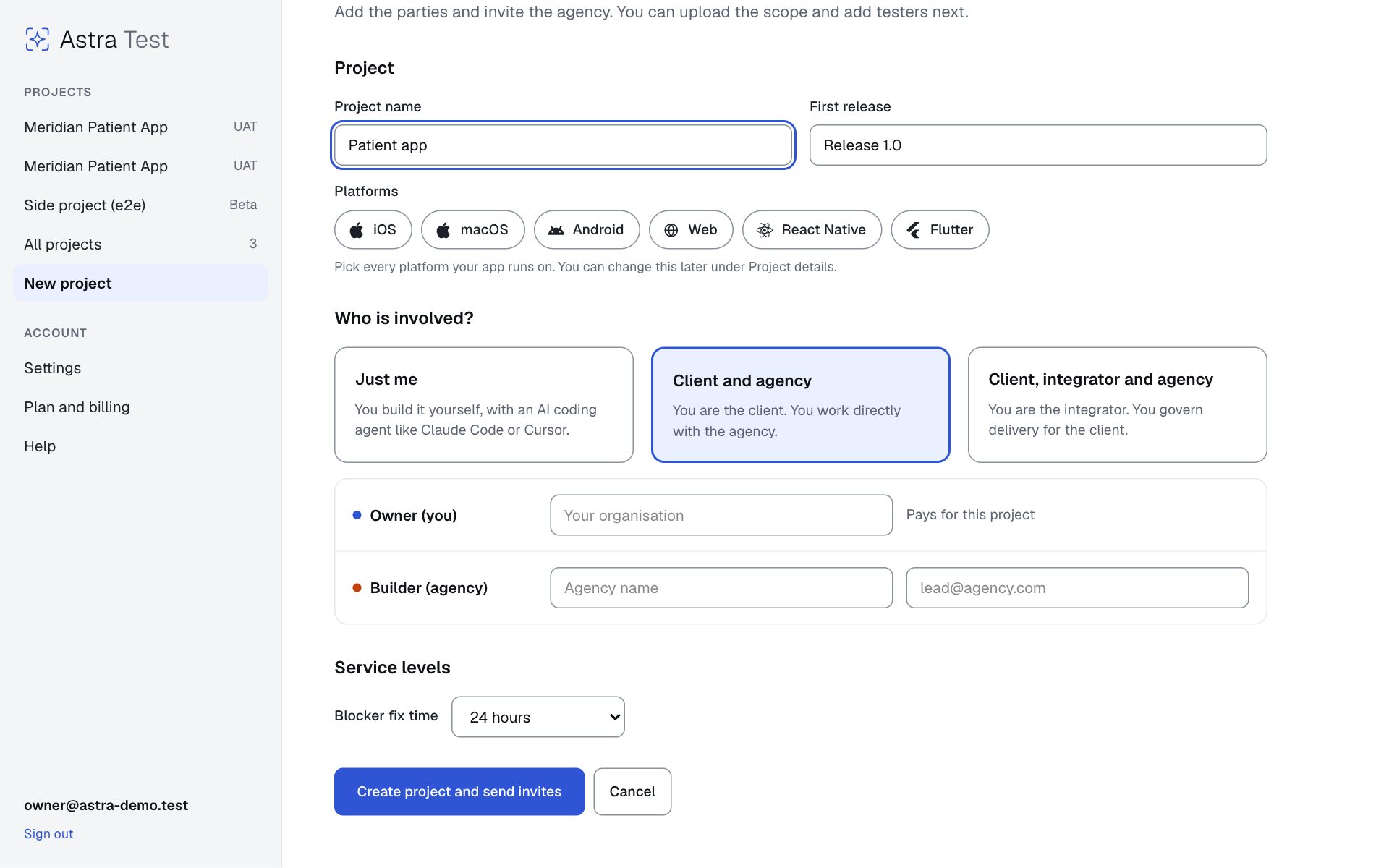
For your second app onwards.
Where: Projects → New project, /projects/new
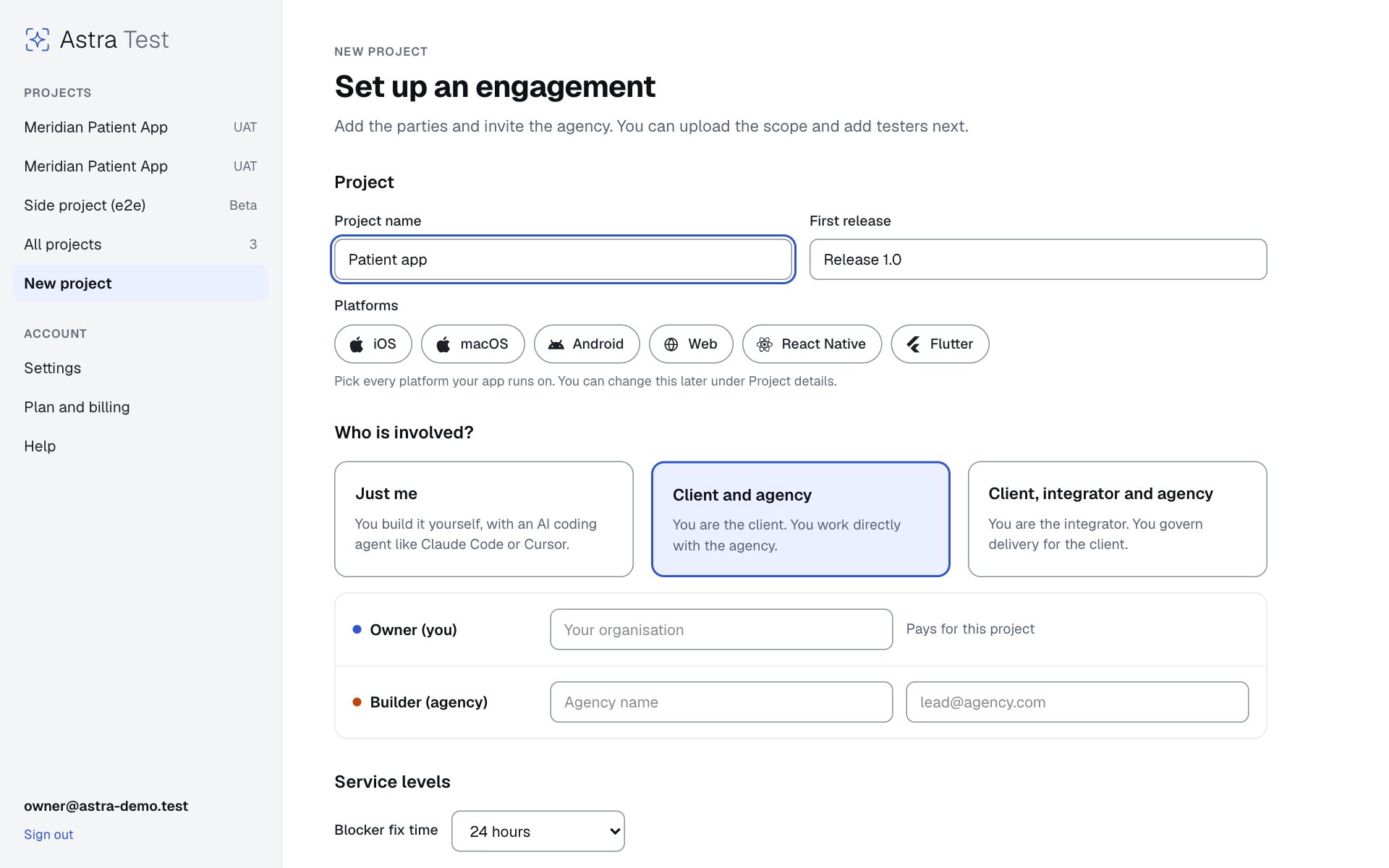
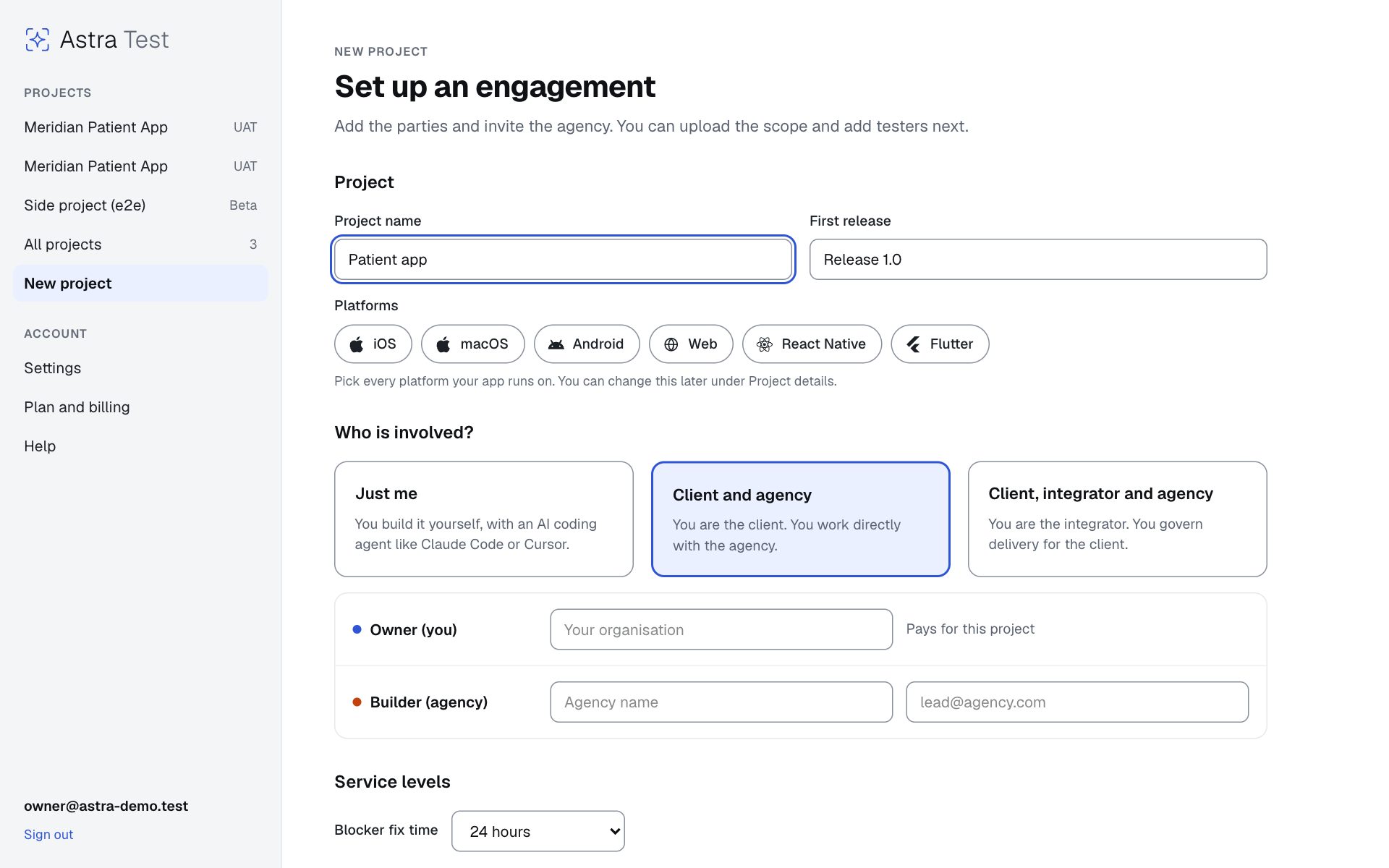
- Enter the Project name and pick every one of the Platforms your app runs on (picked ones turn blue with a tick).
- Under Who is involved?, choose Just me.
- Enter your name or company next to Maker (you).
- Choose Create project.
You land on Coding agent. The sidebar says Solo project instead of listing parties.
Rename the project or change its platforms#
Where: the project's Overview, /p/[id], Project details (you, as the Maker)
- Open Project details at the bottom of the Overview.
- Change the Project name, the Current release, or the Platforms.
- Choose Save details.
Renaming is safe: connected coding agents, SDK keys and .astratest.json files use the project's id, not its name, so they all keep working.
Connect your coding agent#
Where: Coding agent, /p/[id]/agent
Three steps, once per computer: connect the computer your agent runs on (sign in from the agent, or npx astra-test login for a background machine), tell it which project each repo is (.astratest.json), and check it. One connection covers all your projects.
See Connect your coding agent for every agent, background machines, CI, the tools your agent gets, and what to do if it doesn't work.
Then ask your agent, for example: "Fix the open Astra Test issues, most severe first."
Add the SDK to your app#
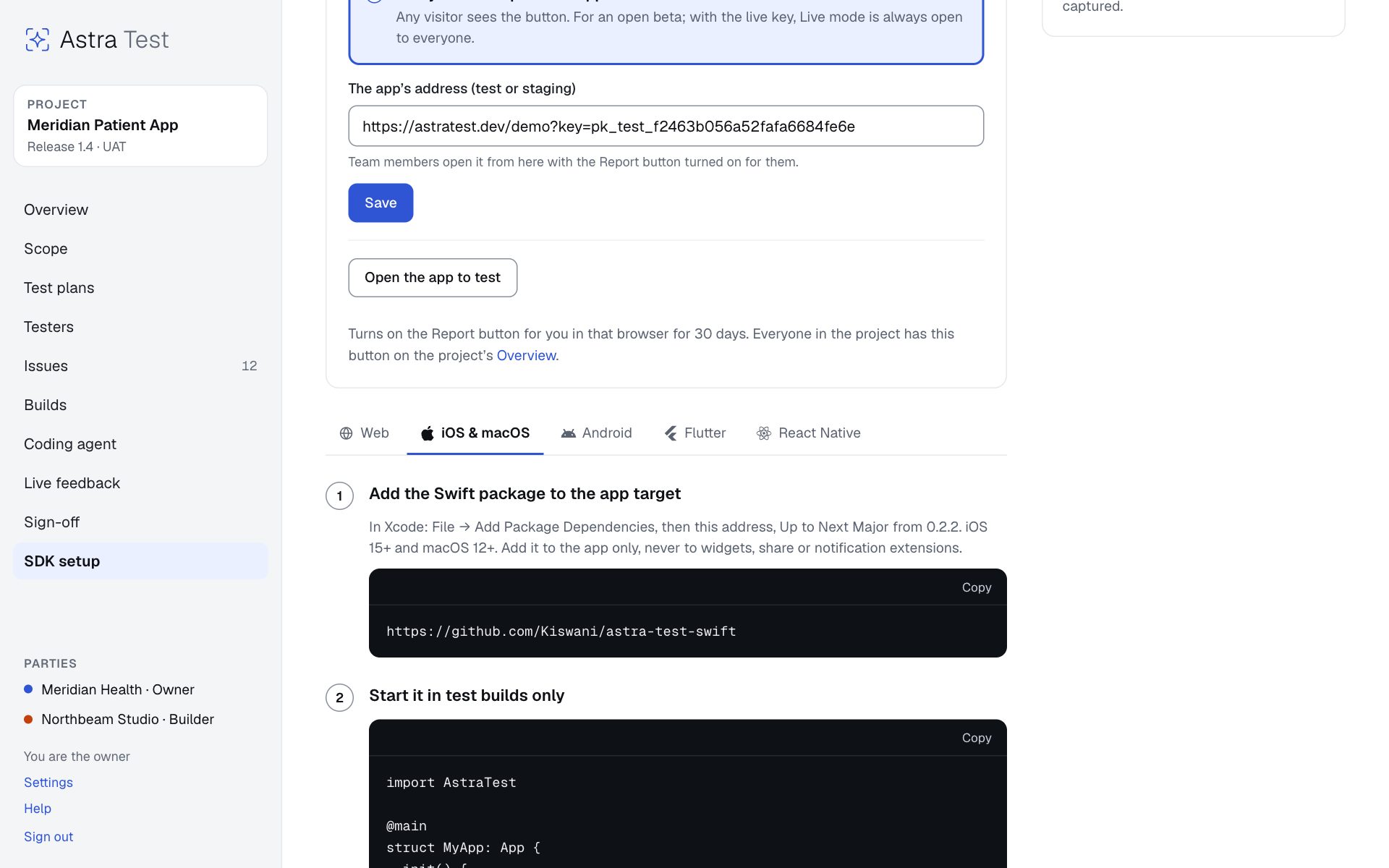
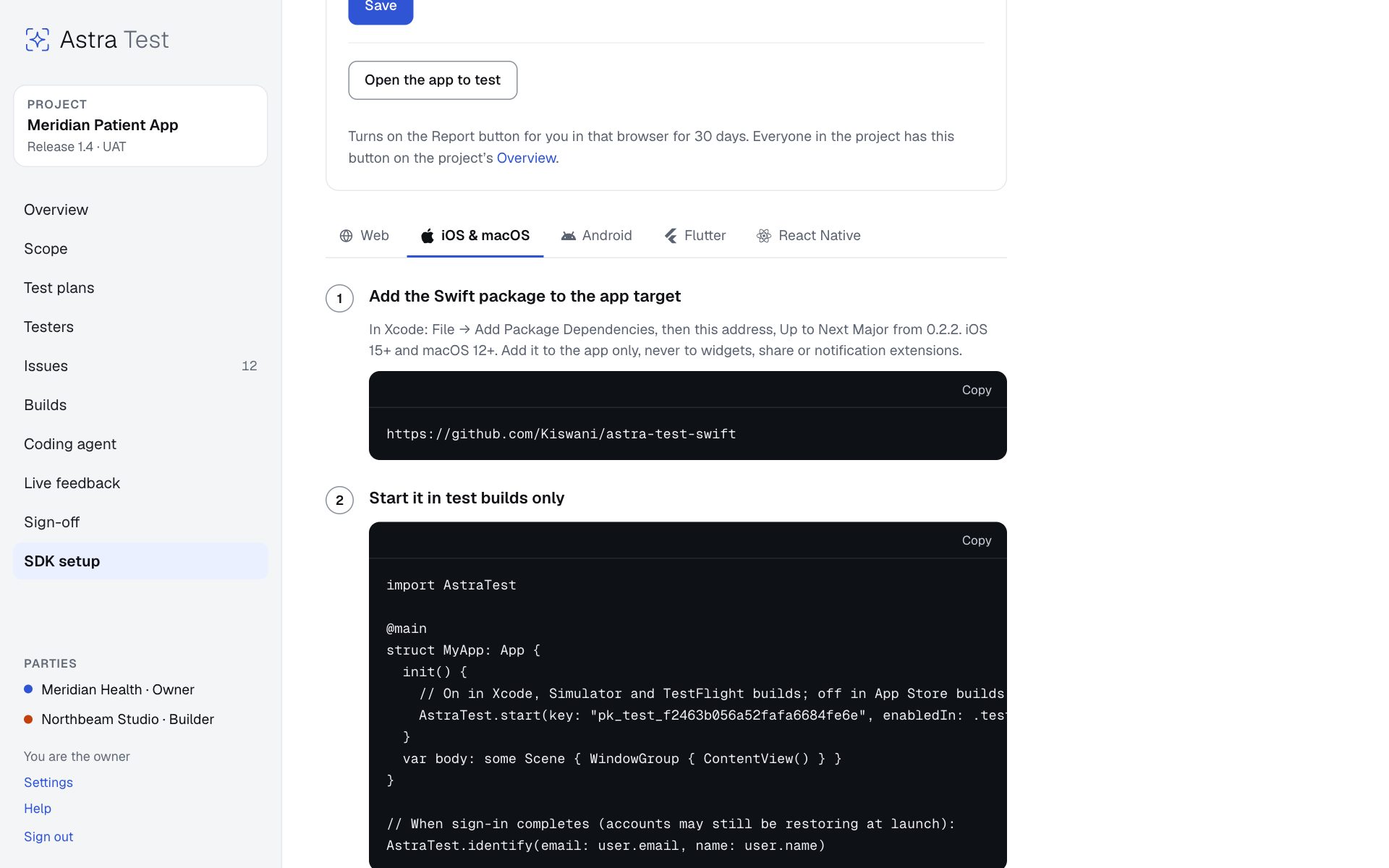
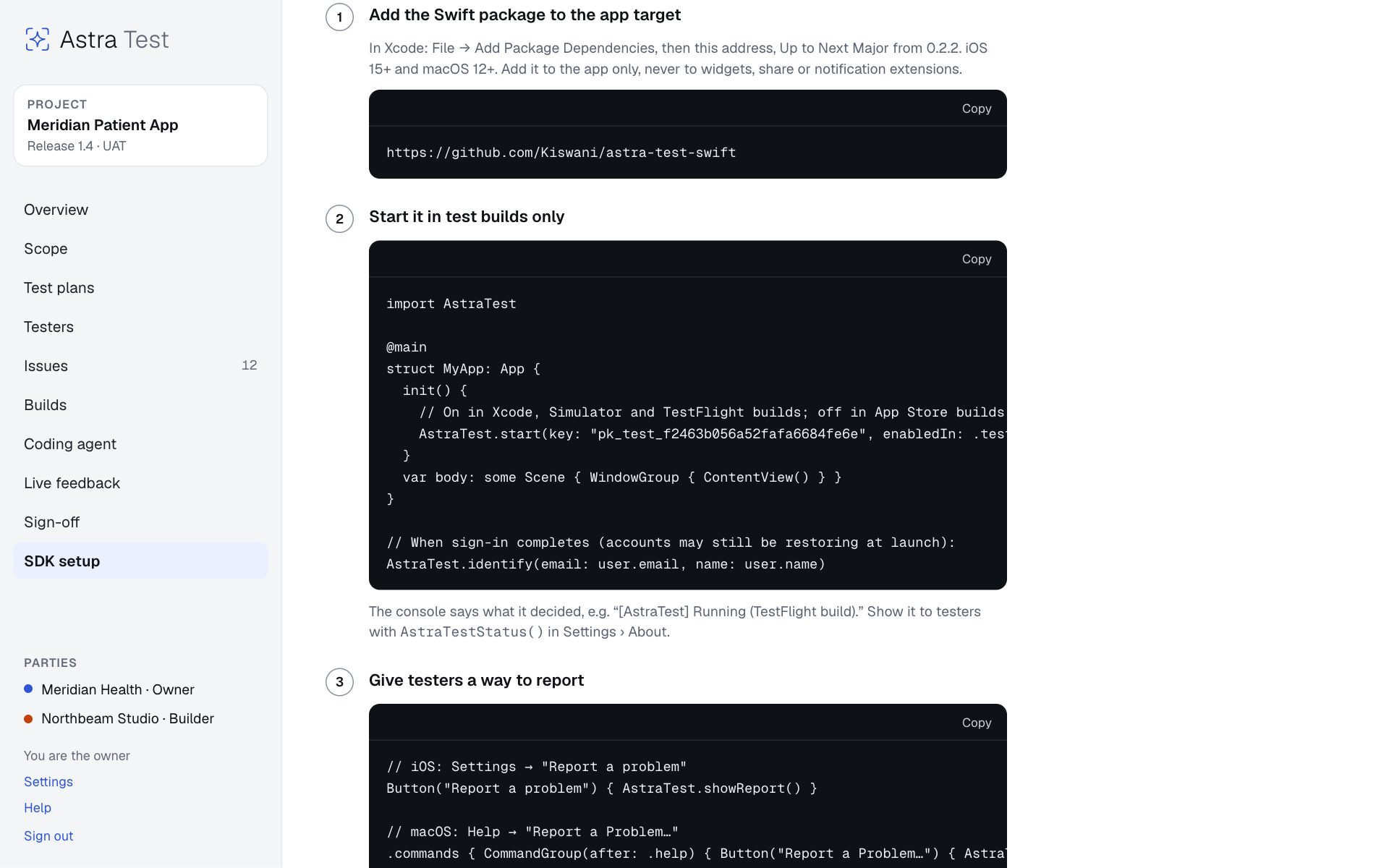
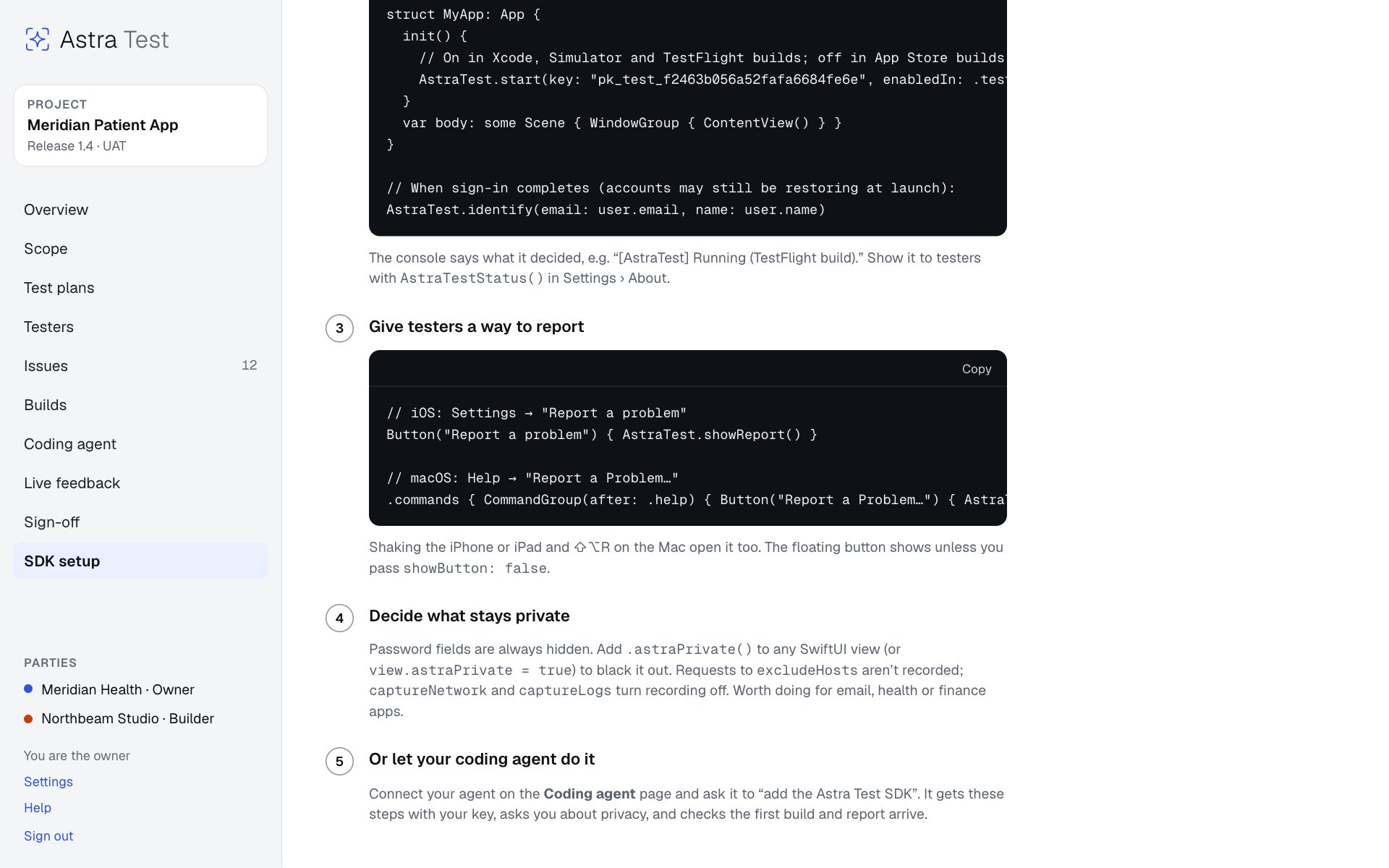
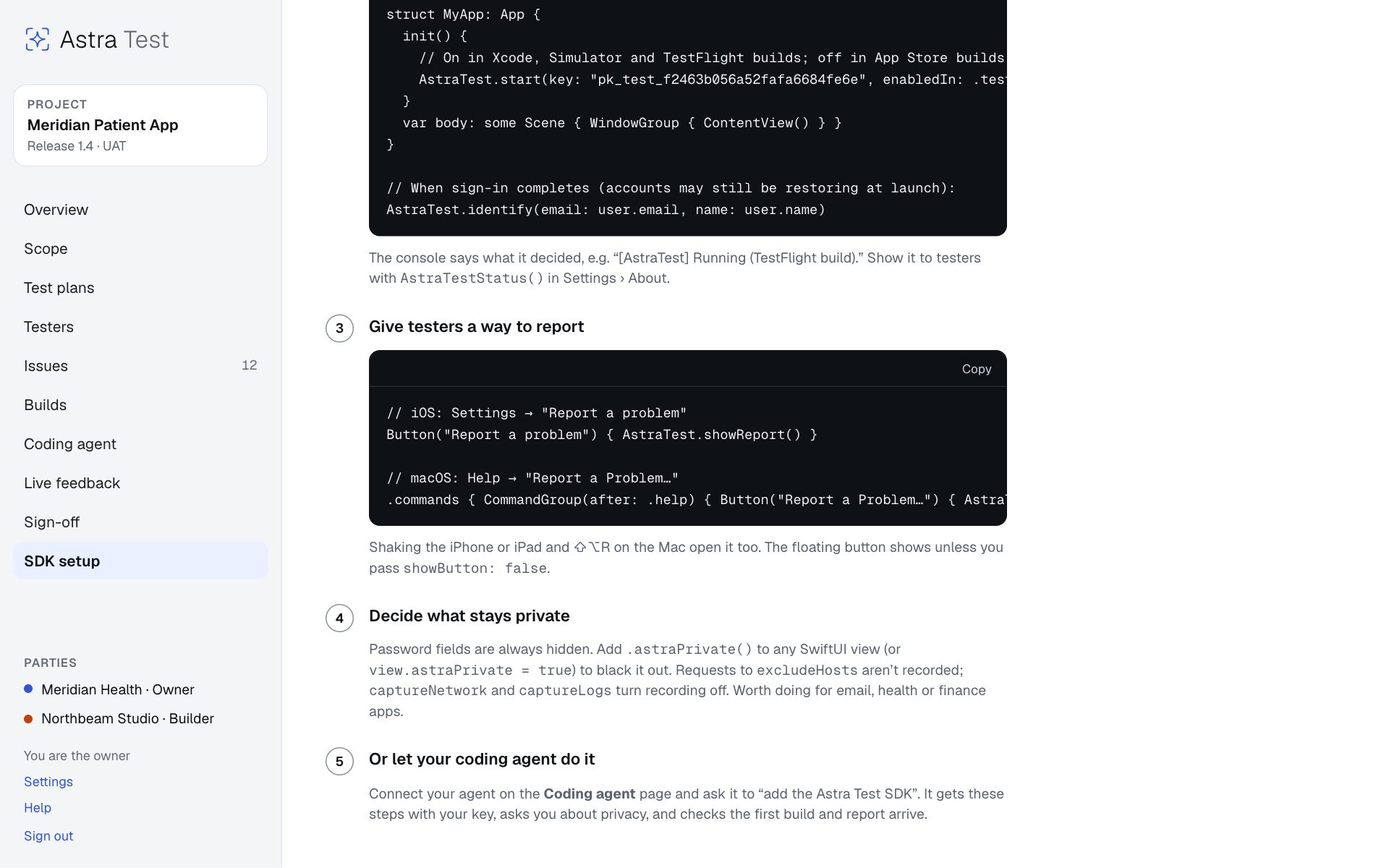
The quickest way: ask your connected coding agent to "add the Astra Test SDK". It follows the setup steps for your platform with your key, asks whether anything should stay private, and checks the first build and report arrive. To do it yourself, see Install the SDK. For your own builds, use the test key. For your production app, turn on Live mode and use the live key.
Keep the Report button to yourself#
On a website, new projects show the Report button only to people in the project, so visitors to your site don't see it, even when the site is public.
- On SDK setup, under Who sees the Report button, keep Only our team and enter The app's address. Choose Save.
- On the Overview, choose Open the app to test, or press Shift + Alt + R on your site and sign in. You do this once per browser.
The button then stays on for you while you keep using the site, and turns off when you sign out of Astra Test. To let your app's own signed-in users report too, choose Our team and the app's signed-in users. To show it to every visitor, choose Everyone who opens the app. See Choose who sees the Report button for the details.
Check a fix and close it#
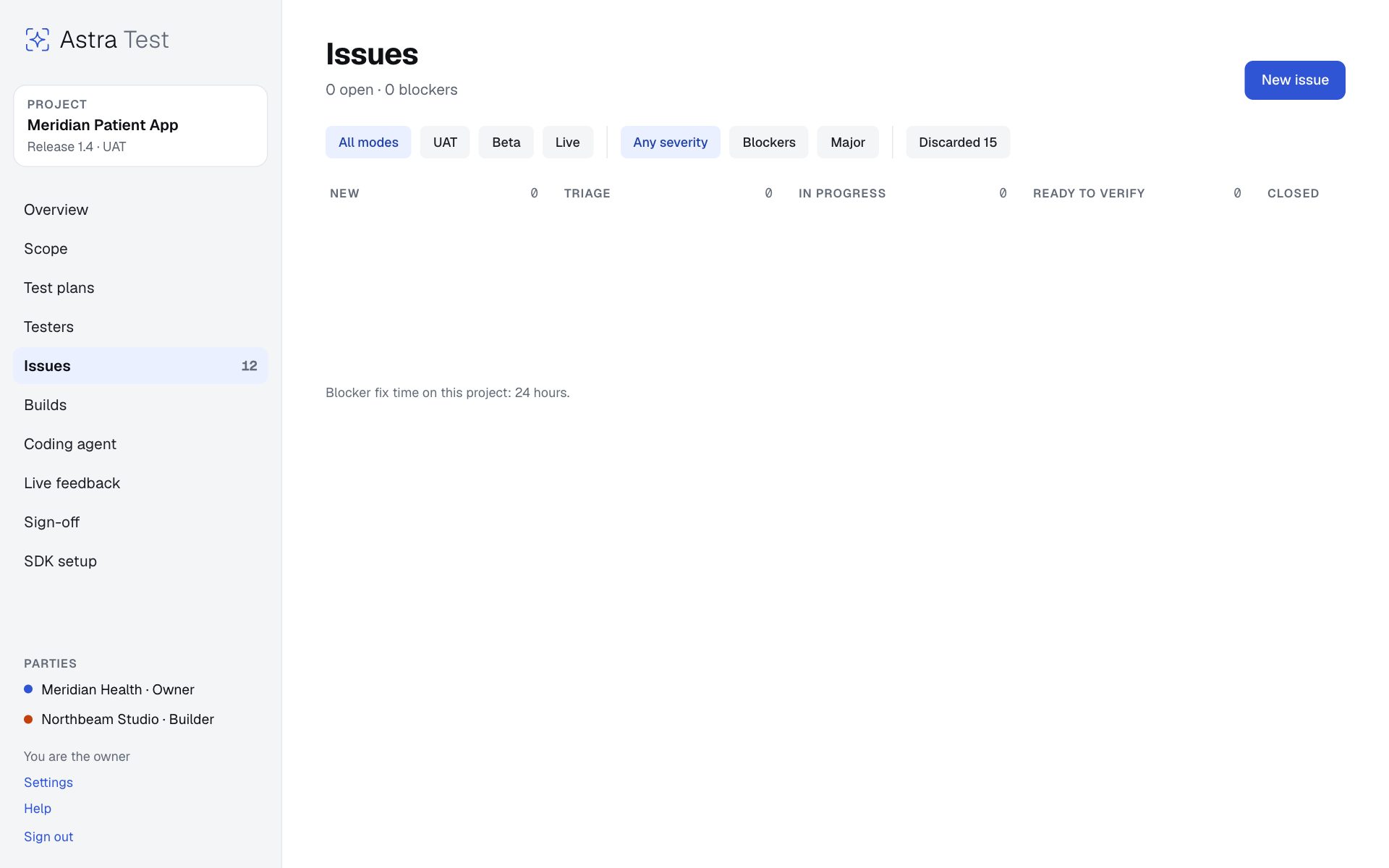
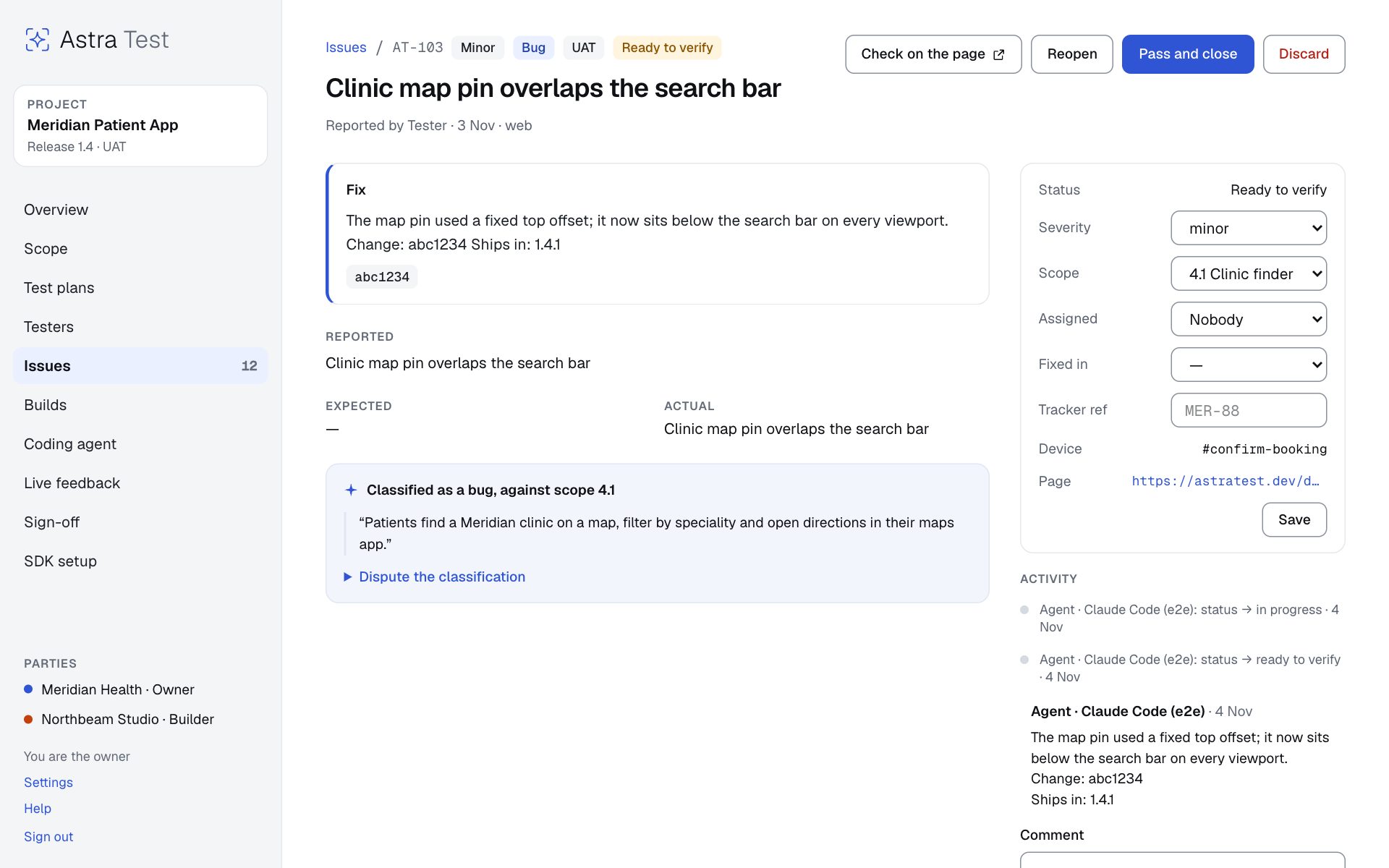
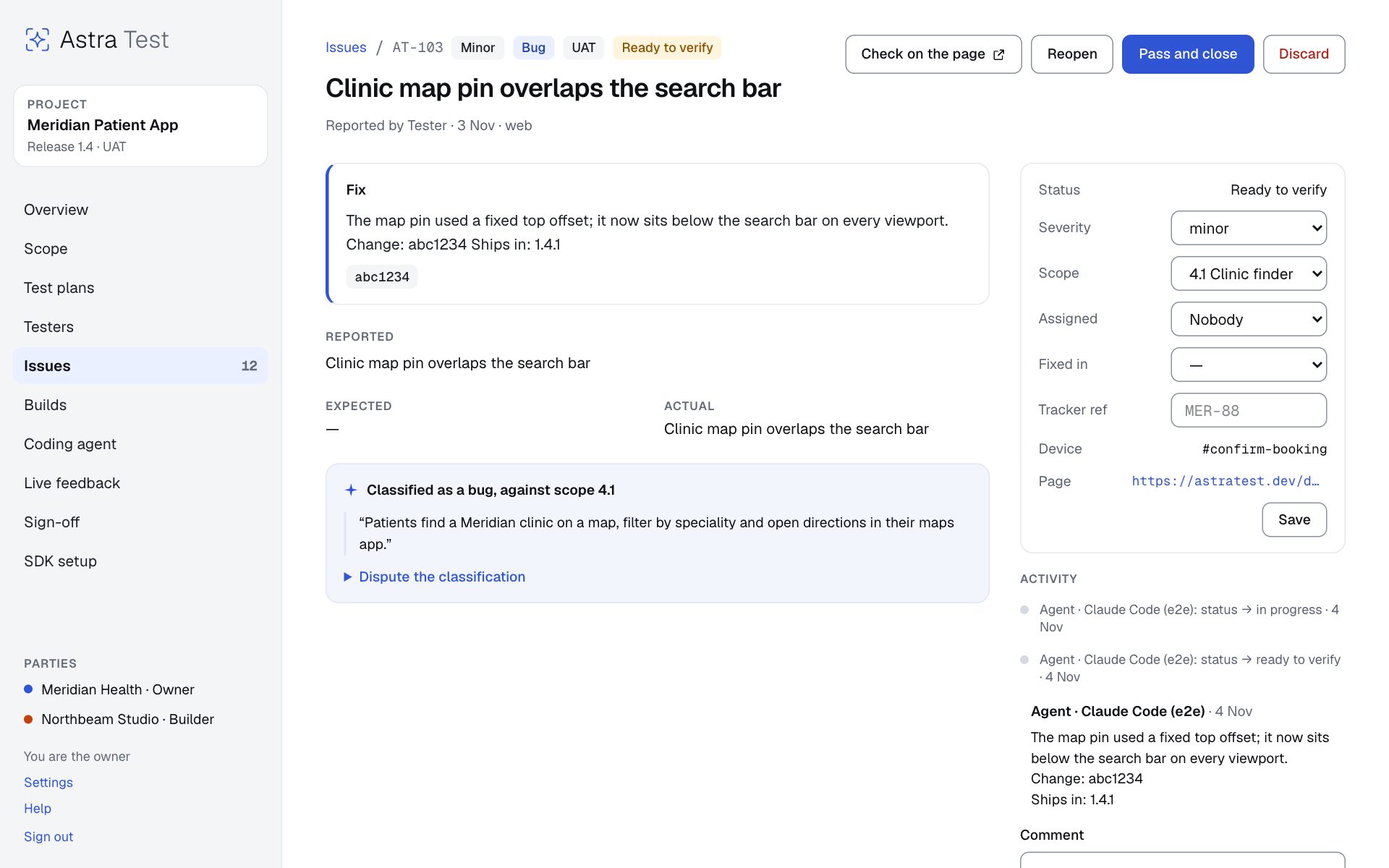
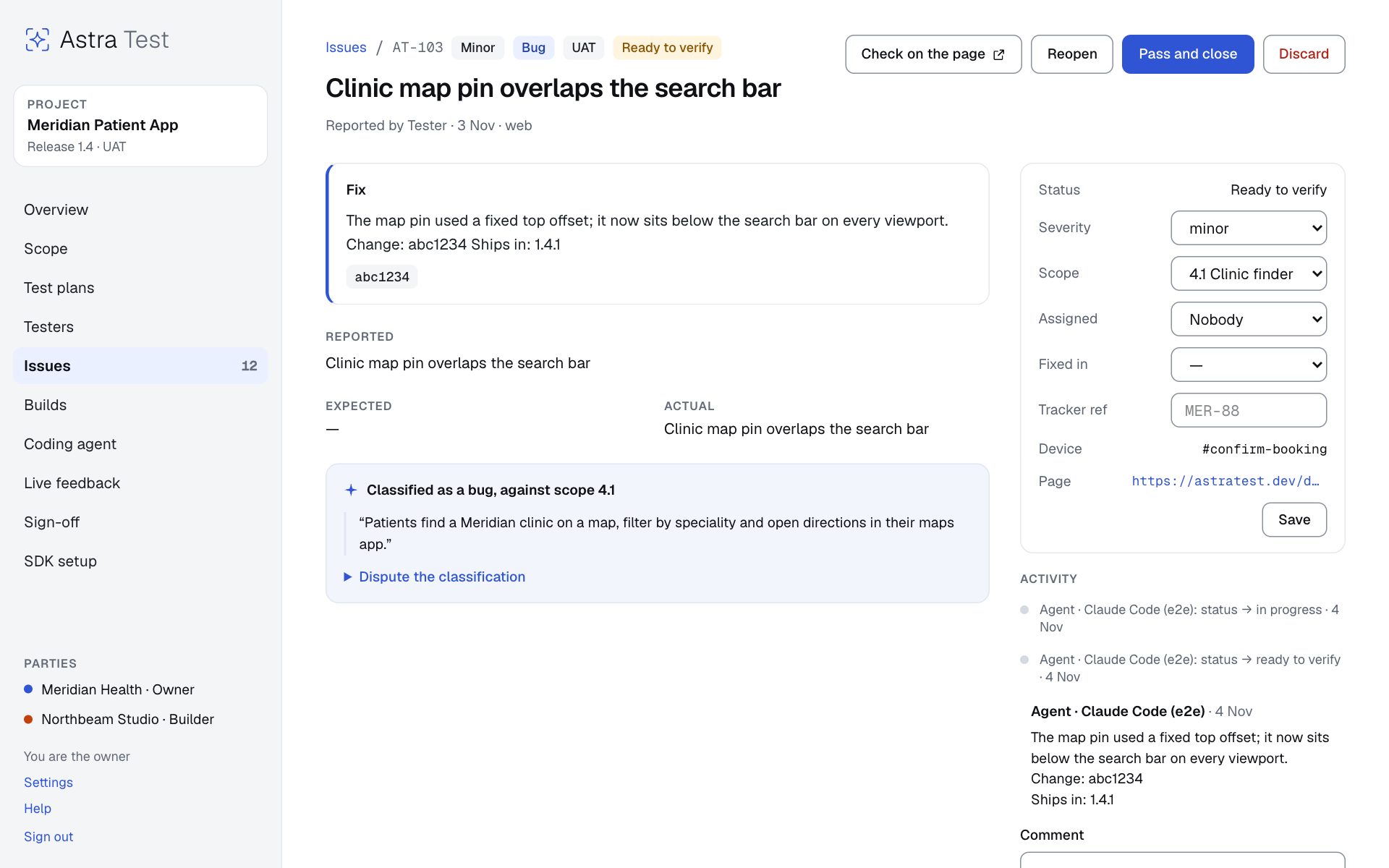
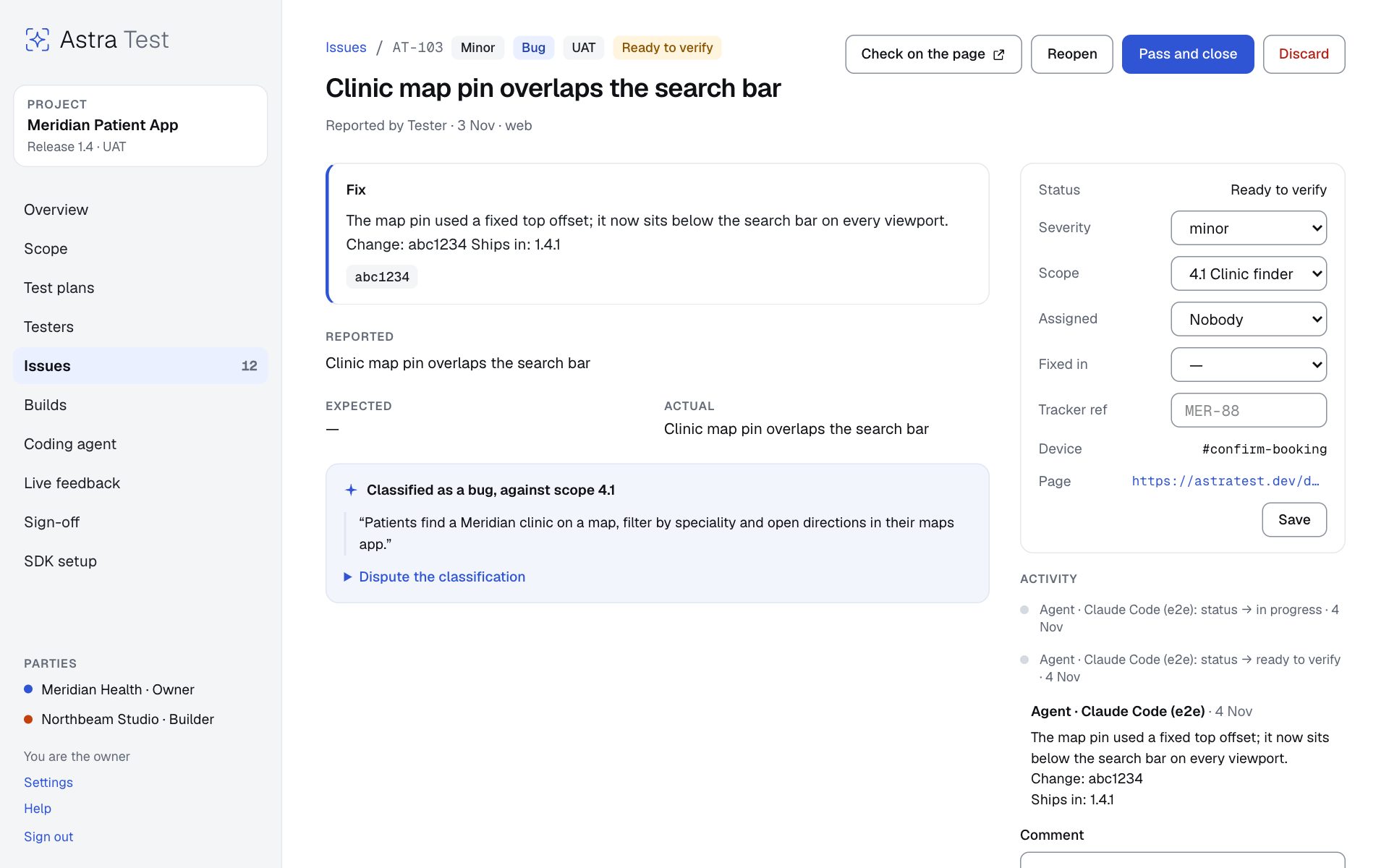
Where: an issue in Ready to verify, /p/[id]/issues/[number]
- If the agent attached a commit when it marked the issue fixed, a Fix card appears at the top with the summary, commit reference, and proof screenshot if one was provided. Read it to see what changed.
- Try the fix in your app.
- Choose Pass and close, or Reopen and explain what's still wrong in a Comment. Your agent reads comments the next time it opens the issue.
Share a brief with someone outside the project#
Need to show an issue to an external developer or contractor without adding them to the project? See Share a public brief with an external collaborator.
Get a daily digest#
Where: Settings, /settings (link at the bottom of the sidebar)
The digest is on by default. At 8:00 AM Gulf time it emails you:
- what's new on each of your projects since the last digest, blockers first;
- how many fixes are ready for you to verify, with a button that takes you to them;
- a prompt to paste into the agent.
It only goes out when something has changed. Choose Turn off to stop it, or Send me one now to see one straight away.
Know when a fix reaches people#
Tell your agent which version a fix ships in. With Claude Code: "mark it fixed, it ships in 1.4.1". When your app starts with that appVersion, the SDK tells Astra Test, and:
- the issue shows Ships in 1.4.1 and Build web 1.4.1 reported in. The fix ships in it. in Activity;
- the person who reported it gets an email asking Is it fixed for you?;
- their answer appears on the issue. Still broken reopens it for your agent, with their note.
Let your agent see live feedback#
Live reports come from the public, so anyone can type anything into them. They reach your agent only after you've read them.
Where: a live issue, /p/[id]/issues/[number], or Live feedback, /p/[id]/live
- Open the report. Live issues show Not sent to agent.
- If it's a genuine report, choose Send to agent. The label changes to Sent to agent, and your agent can now work on it.
Clear out duplicates and noise#
On Issues, use a card's … menu → Discard… for duplicates, test reports and spam. Your agent stops seeing it straight away. See Discard or delete an issue.
Invite testers#
See Invite testers. Friends, beta users and early customers all count as testers.
On a phone#
Astra Test works in your phone's browser. The menu sits behind the ☰ button at the top left, next to the project name; tap it to move between pages. Tables show as one card per row, and on the Issues board you swipe sideways between columns.
See your plan and what it will cost#
Where: Plan and billing, /billing (in the sidebar of every page)
Everyone who signs up during early access gets every feature free for 12 months from the day they join. Plan and billing shows the date it ends and how many days are left, the plans and prices that apply afterwards (Free, Maker and Studio, monthly or yearly), and your billing details. No card is needed, and nothing is charged when the free year ends.
Move between projects and your account#
The sidebar on Projects, Settings and Plan and billing lists your projects, and Back to at the top returns you to the project you were last in. Inside a project, the links at the bottom of the sidebar lead to All projects, Settings and Plan and billing.
Blog#
Where: /blog
The Blog has engineering and product posts from the Astra Labs team — workflow tips, comparisons with other tools, and updates on what's new.