For the agency building the app. Join the project, install the SDK, triage and fix issues, ship builds and sign off.
Builder guide
You are the Builder when your agency is building the app. Astra Test is free for you. The client invites you, and you:
- install a single line of SDK in your builds;
- receive structured reports from testers, with a screenshot and logs attached;
- fix issues against the agreed scope.
Accept the invitation#
Where: the invite link in your email, /invite/[token]
- Open the link. It shows who invited you, the project, and what joining as the Builder means.
- Choose Create account, or I have an account if you already use Astra Test.
- Choose Accept as *your email*.
You land on SDK setup.
Install the SDK#
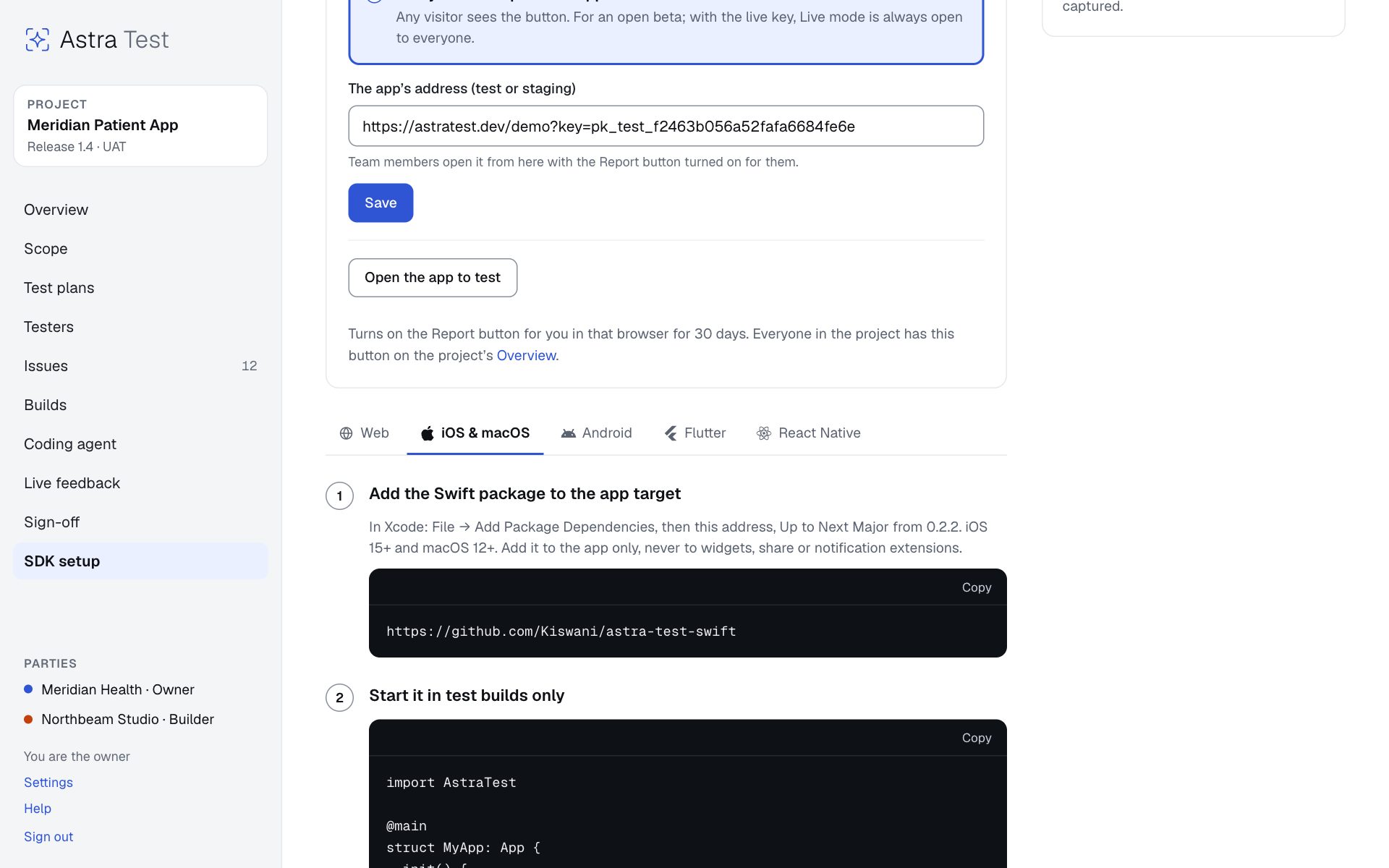
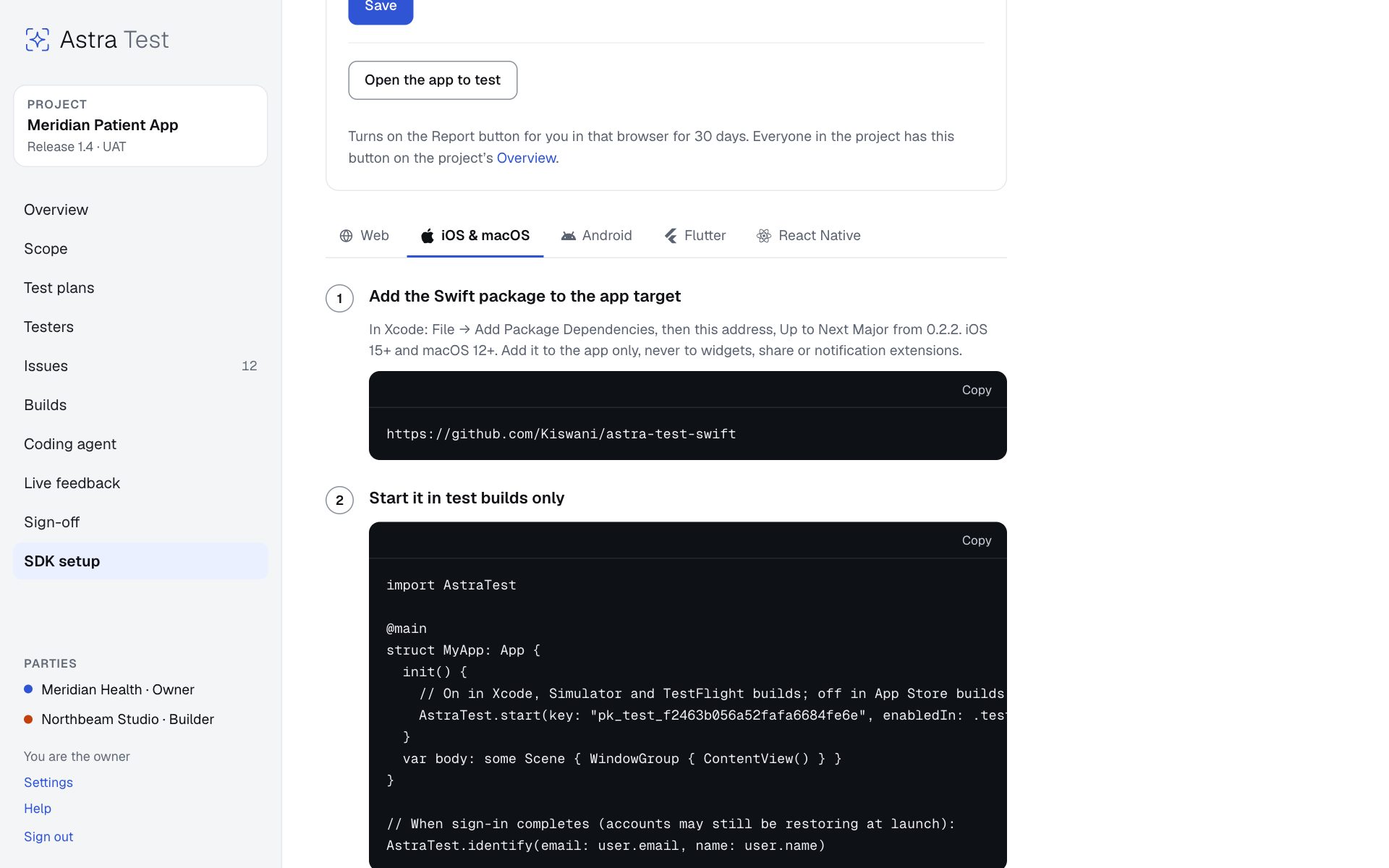
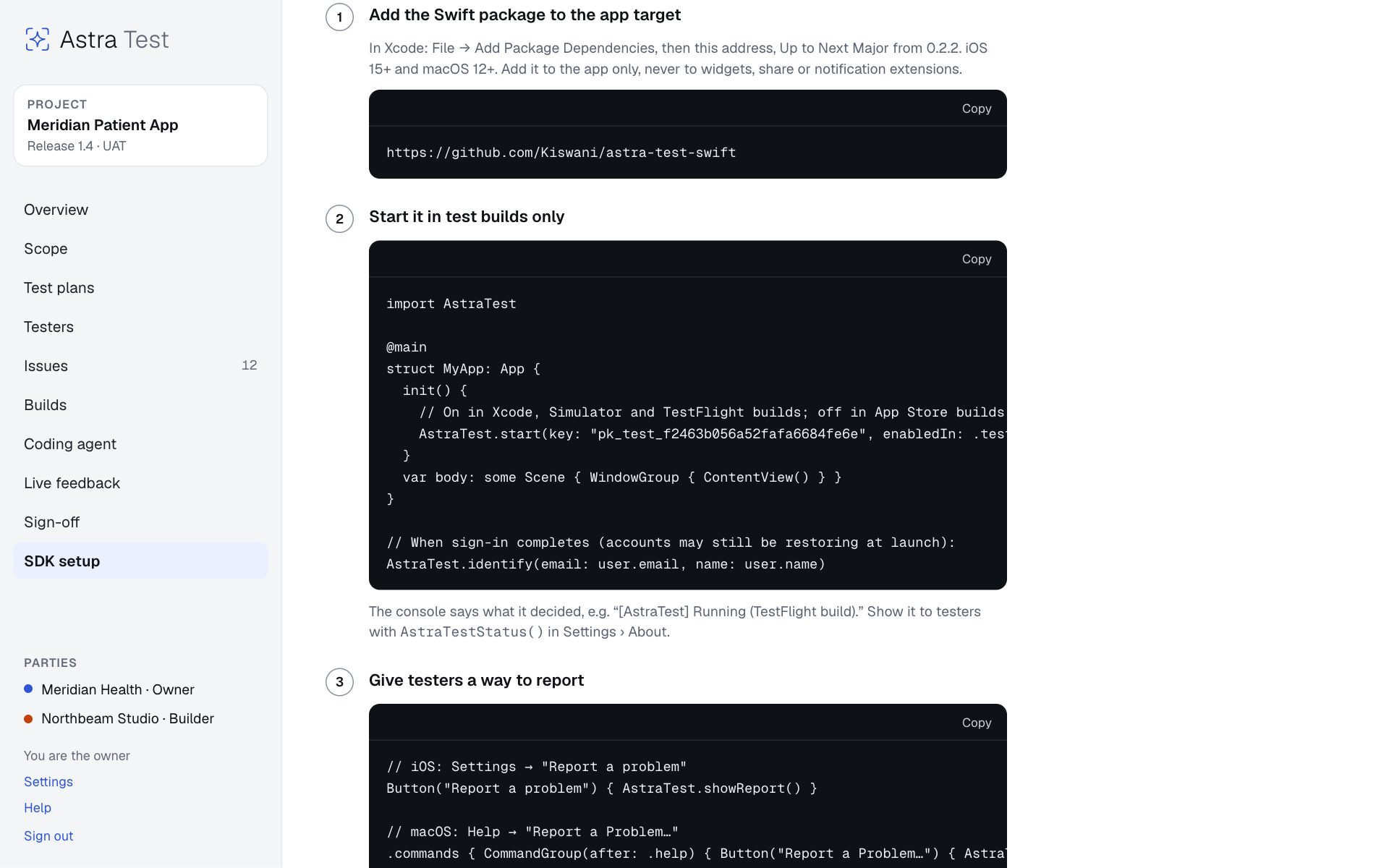
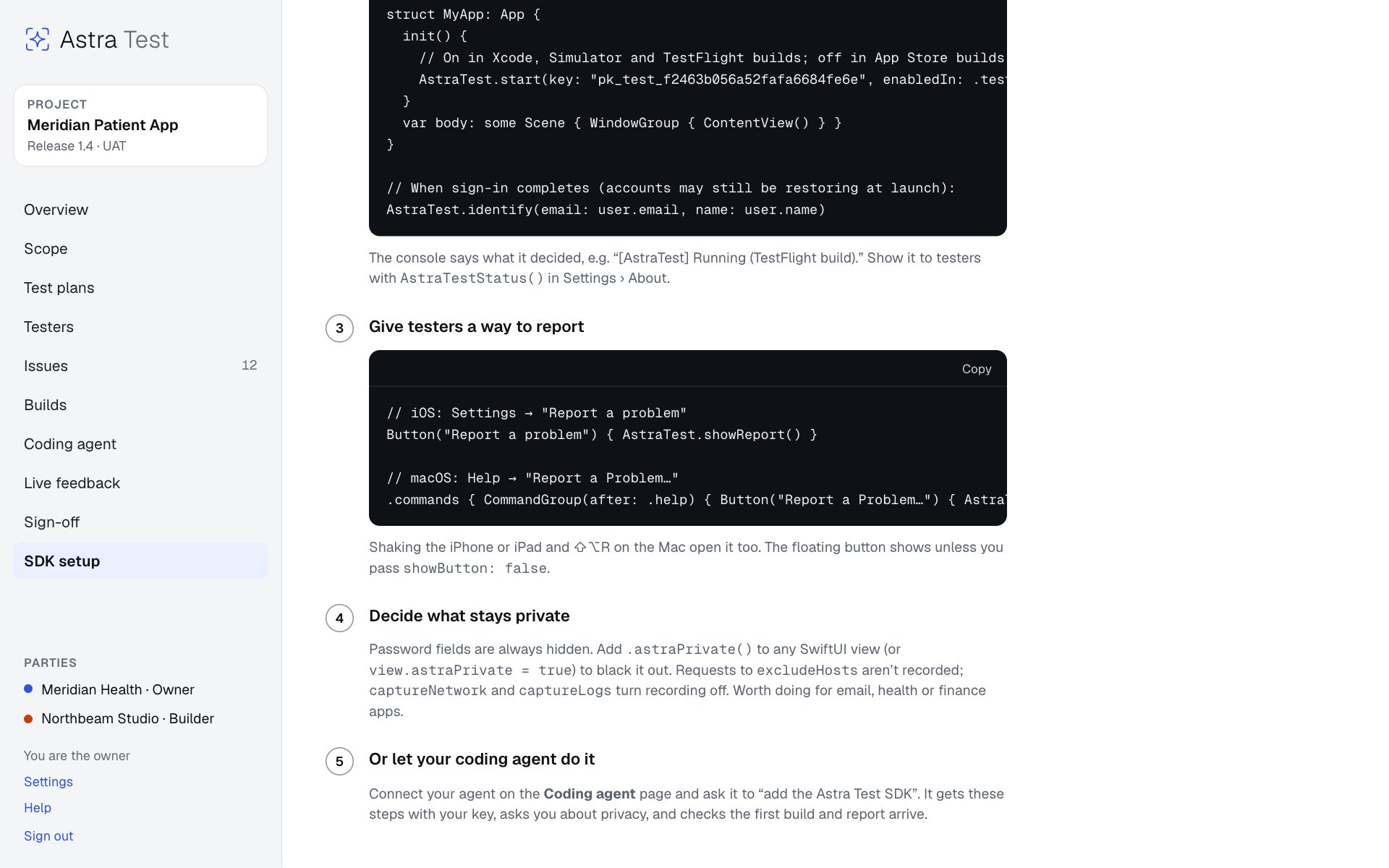
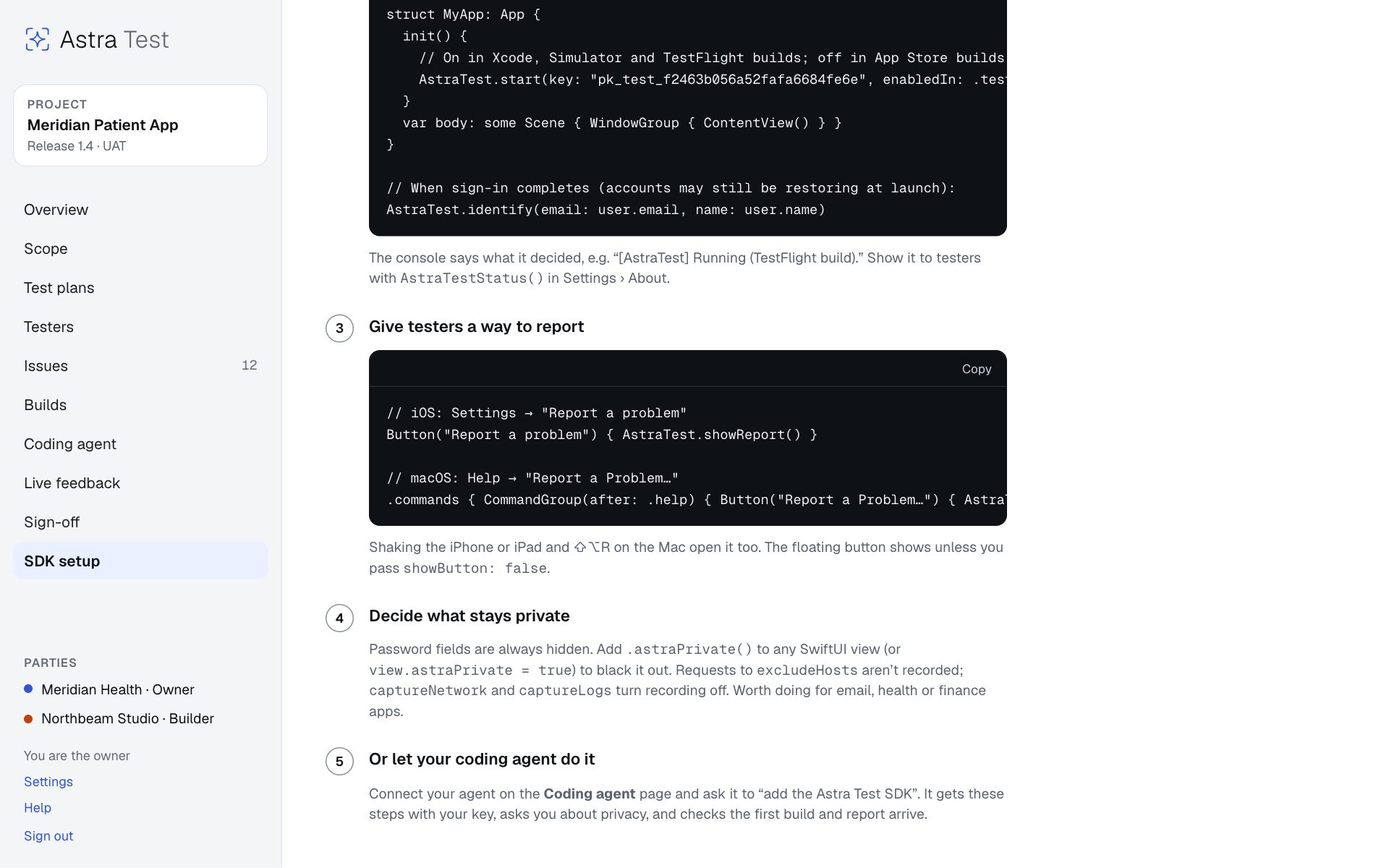
Testers report from inside your app, so the SDK needs to be in every UAT and beta build.
Where: SDK setup, /p/[id]/setup
Web, with a script tag (recommended):
<script src="https://astratest.dev/sdk/astra.js"></script>
<script>Astra.start("pk_test_…");</script>
The page shows this snippet with your project's test key already filled in. Alternatively, use a single tag that starts the SDK itself:
<script src="https://astratest.dev/sdk/astra.js" data-key="pk_test_…"></script>
Say who is testing and which build (optional, step 2 on the setup page): start the SDK with the tester's email and your app version instead. See Tell Astra who is testing and which build.
Mobile and desktop apps: the setup page has a tab for each platform, with the install line and start code filled in with your key:
| Platform | Install | Start | Testers report with |
|---|---|---|---|
| iOS and macOS | Swift Package, app target only | AstraTest.start(key:, enabledIn: .testBuilds) | Your "Report a problem" item, shaking the iPhone, ⇧⌥R on the Mac, or the Report button |
| Android | Gradle library | AstraTest.start(this, key) in your Application | Report button or shaking the phone |
| Flutter | flutter pub add astra_test | AstraTest.runApp(…) and builder: AstraTest.builder | Report button |
| React Native | npm package | AstraTest.start(key) and <AstraTestProvider> | Report button |
For React Native there is also a quickstart guide with the full API reference and Expo instructions.
Test builds only (iOS and macOS): enabledIn: .testBuilds keeps reporting on in Xcode, Simulator and TestFlight builds and off in App Store builds, so App Store users never see it. The app's console says what it decided, and AstraTestStatus() shows it on a Settings or About screen. Add a Report a problem item (Settings on iPhone, the Help menu on the Mac) that calls AstraTest.showReport(), and call AstraTest.identify when sign-in completes. Keep the SDK out of app extensions. When a newer SDK is out, the app's console and AstraTestStatus() say so, the SDK setup page shows a banner, and connected coding agents are told when they list or open issues.
Private data: password fields are always hidden. Mark anything else private (.astraPrivate() in SwiftUI), and for email, health or finance apps consider turning off network or log recording, or excluding specific hosts such as gmail.googleapis.com.
Background agents need a token: signing in through the browser works for agents you use yourself. Agents that run in the background, on a schedule, in CI or on another machine can't open a browser, so give them a token from Use a token instead on the Coding agent page. Check with claude mcp list: it should say Connected, not Needs authentication.
Let your coding agent do it: once your agent is connected (see Connect an AI coding agent), ask it to "add the Astra Test SDK". It gets the steps for your platform with your key, asks you about private data, and checks that the first build and report arrive.
Each one attaches a screenshot, the app's recent log lines, recent network requests and device details. Network capture is automatic on iOS, macOS, Flutter and React Native; on Android, add AstraTest.okHttpInterceptor() to your OkHttp client. To hide something in screenshots beyond password fields, use astraPrivate (iOS, macOS), AstraTest.markPrivate(view) (Android) or the AstraPrivate wrapper (Flutter, React Native).
Once the SDK is installed, a floating Report button appears in the bottom-right corner of the app, and on the web testers can also press Shift + Alt + R. The setup page changes from Waiting for the first report to SDK connected after the first report arrives.
Tell Astra who is testing and which build#
These options are optional, but they make reports much more useful.
Astra.start("pk_test_…", {
  user: { email: currentUser.email, name: currentUser.name }, // links the report to the tester
  appVersion: "1.4.0",   // creates the build in Builds automatically
  build: "214",
  testCase: "UAT-12",    // links the report to a test case
  hideButton: false,     // true hides the floating button
});

Astra.identify({ email });   // set the user after sign-in
Astra.setTestCase("UAT-07"); // change the test case being run
Astra.open(); // open the reporter from your own button or menuShow the Report button to the right people#
Web apps: the Owner chooses who sees the button on SDK setup (Only our team, Our team and the app's signed-in users, or Everyone). For the second choice, call Astra.identify({ email, name }) after your app signs someone in. Native apps: start the SDK only in test builds (TestFlight, debug, internal).
Keep private data out of reports#
The reporter attaches a screenshot, the recent network calls and the console output.
- Password fields are always hidden in screenshots.
- Add
data-astra-maskto any other element that must be hidden. - Request and response bodies are never captured. Network capture records only the method, URL, status and timing.
Use the right key#
Where: SDK setup → Keys
- Test key (
pk_test_…): UAT and beta builds.
Use Copy next to a key on SDK setup to copy it.
- Live key (
pk_live_…): production builds. It only appears once the Owner or Governor turns on Live mode, and it only accepts reports while Live mode is on.
Connect an AI coding agent#
If your team fixes issues with Claude Code, Cursor or another MCP client, connect it on Coding agent, /p/[id]/agent. The agent reads each issue as a fix brief, with the screenshot and logs, and can start work, mark issues fixed and comment.
See Connect your coding agent. You connect each computer once, for all your projects, and each repo says which project it is in .astratest.json. Machines that run agents in the background use npx astra-test login.
Triage new issues#
Where: Issues, /p/[id]/issues, or Waiting on you on the Overview
New and reopened issues appear in the New column as they arrive, without refreshing the page. Each report arrives already structured:
- the tester's own words, plus a title, steps, and expected against actual;
- a severity and type: bug, change request or question;
- the scope item it was checked against, quoted from the scope;
- a likely cause, the screenshot, the selected element, the failing network calls and the console errors.
Open the page opens where it happened in a new tab, with the element the tester pointed at outlined, so you can reproduce it. In native apps (iOS, coming soon) there's no page to open; use the screenshot and steps.
On the issue, use the side panel to set Severity, Scope, Assigned (anyone at your agency) and Tracker ref (your own ticket number, such as a Jira or Linear key). Then choose Save.
Act on issues from the board#
Each card on Issues has a … menu: Start work, Mark fixed, Severity, and Send to agent for live reports. You can also drag a card: from New or Triage to In progress, and from In progress to Ready to verify. Columns you can't drop on fade while you drag. When a coding agent starts work on an issue, an Agent working chip appears on the card; it clears when the agent marks the fix or when anyone changes the status. Only the client can discard an issue; if it's a duplicate or not a bug, say so in a comment or open a dispute.
Fix an issue#
Where: an issue, /p/[id]/issues/[number]
- Choose Start work. The issue moves to In progress.
- When the fix is in a build, set Fixed in to that build and Save.
- Choose Mark fixed. The issue moves to Ready to verify, the reporter receives an email asking them to verify the fix, and it goes to the client.
Say which build a fix ships in#
Set Fixed in on the issue, or give your agent the version when it marks the issue fixed. If you pass appVersion to the SDK, a build is created automatically the first time that version starts, and fixes marked for it are linked to it. The reporter is then asked whether it's fixed for them.
Get a daily digest of new work#
Where: Settings, /settings (link at the bottom of the sidebar)
The digest is on by default. At 8:00 AM Gulf time it emails you:
- what's new on each of your projects since the last digest, blockers first;
- how many fixes are ready for you to verify, with a button that takes you to them;
- on projects with a coding agent, a prompt to paste into the agent.
It only goes out when something has changed. Choose Turn off to stop it, or Send me one now to see one straight away.
Disagree that it's a bug#
If an issue asks for something the scope doesn't cover, say so instead of quietly fixing it or ignoring it.
Where: an issue, /p/[id]/issues/[number]
- Open Dispute the classification.
- Explain why this is a change request and not a bug.
- Choose Open dispute. The issue moves to Triage, marked Disputed.
The Owner or Governor decides one of three outcomes: Bug (you fix it in scope), Shared change (the cost is split) or Change request (the client approves and pays). Their reason is shown on the issue.
Ship a build#
Where: Builds, /p/[id]/builds
Builds appear automatically the first time they report with appVersion set. To add one by hand, use Add a build with the platform, version, build number and channel.
When a build is ready for the client to test, choose Promote to UAT. Every issue you marked as fixed in that build moves to Ready to verify in one step.
Invite your own testers#
Where: Testers, /p/[id]/testers
You can invite your QA team. Enter their Emails, pick the QA group, then choose Send invites.
See the scope and test plan#
Where: Scope, /p/[id]/scope, and Test plans, /p/[id]/tests
You can read the scope, its acceptance criteria and any ambiguity notes, plus every test case and run. Only the Owner or Governor can edit them.
Sign off a release#
Where: Sign-off, /p/[id]/signoff
Once the client starts sign-off, enter Your title and choose Sign as builder. The certificate is issued when every party has signed.
Sign in or create an account#
See Sign in or create an account.
On a phone#
Astra Test works in your phone's browser. The menu sits behind the ☰ button at the top left, next to the project name; tap it to move between pages. Tables show as one card per row, and on the Issues board you swipe sideways between columns.