For anyone invited to test. Accept the invite, run your test cases, and report what doesn't work in your own words.
Tester guide
You've been invited to test an app before it's accepted. Your job is to:
- run the test cases assigned to you;
- report anything that doesn't work, in your own words and in any language.
You don't need to know anything technical.
Accept the invitation#
Where: the invite link in your email, /invite/[token]
- Open the link. It shows the project and who invited you.
- Choose Create account, or I have an account if you already have one.
- Choose Accept as *your email*.
You land on My test cases.
See what you need to test#
Where: Test plans → My test cases, /p/[id]/tests/mine
Each case you've been assigned shows its number, title and number of steps. Its status is To do until you record a result. The header shows the open run and how many of your cases are done.
If nothing is assigned yet, you'll see Nothing assigned to you. You can still report anything you find.
Run your test cases#
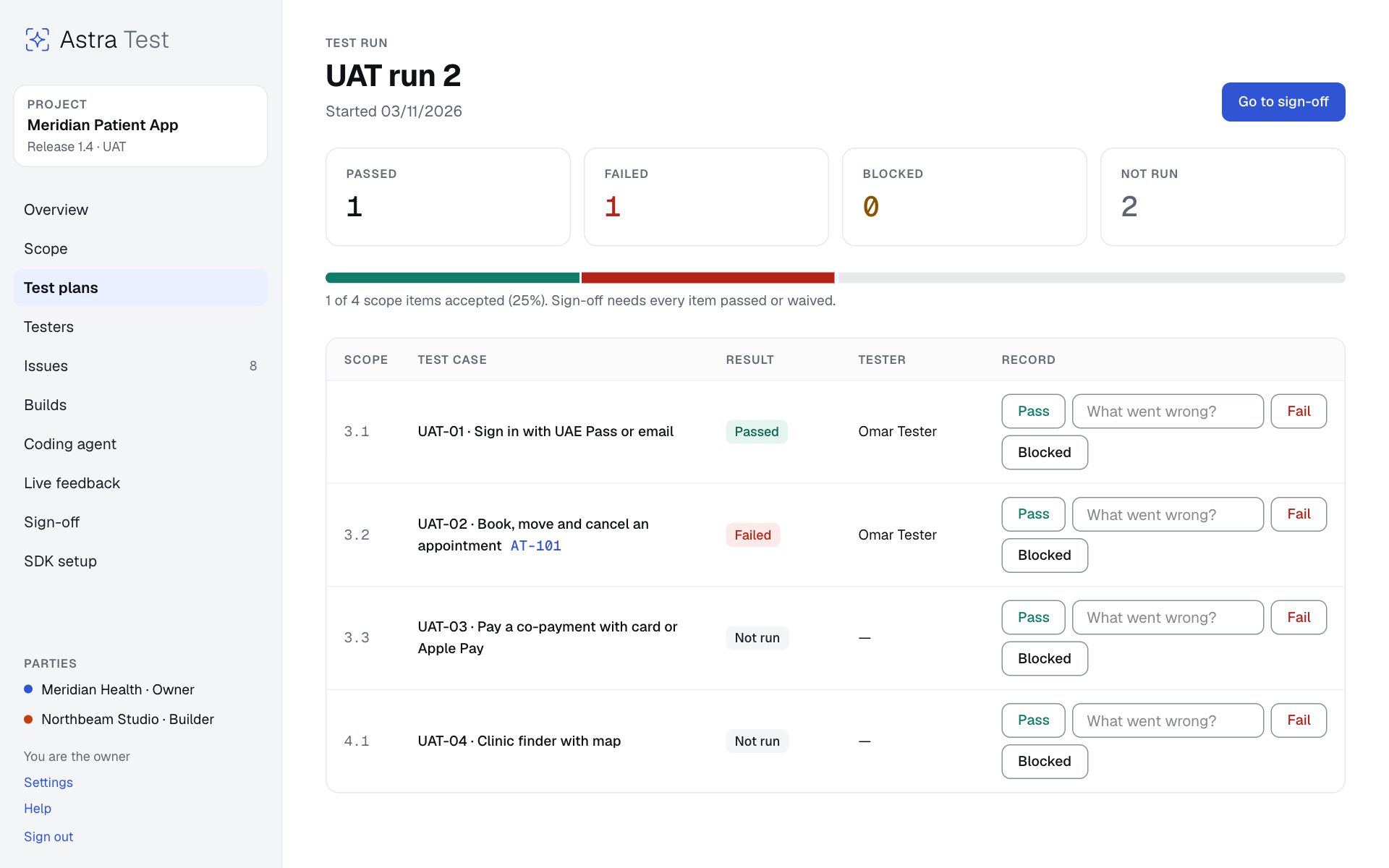
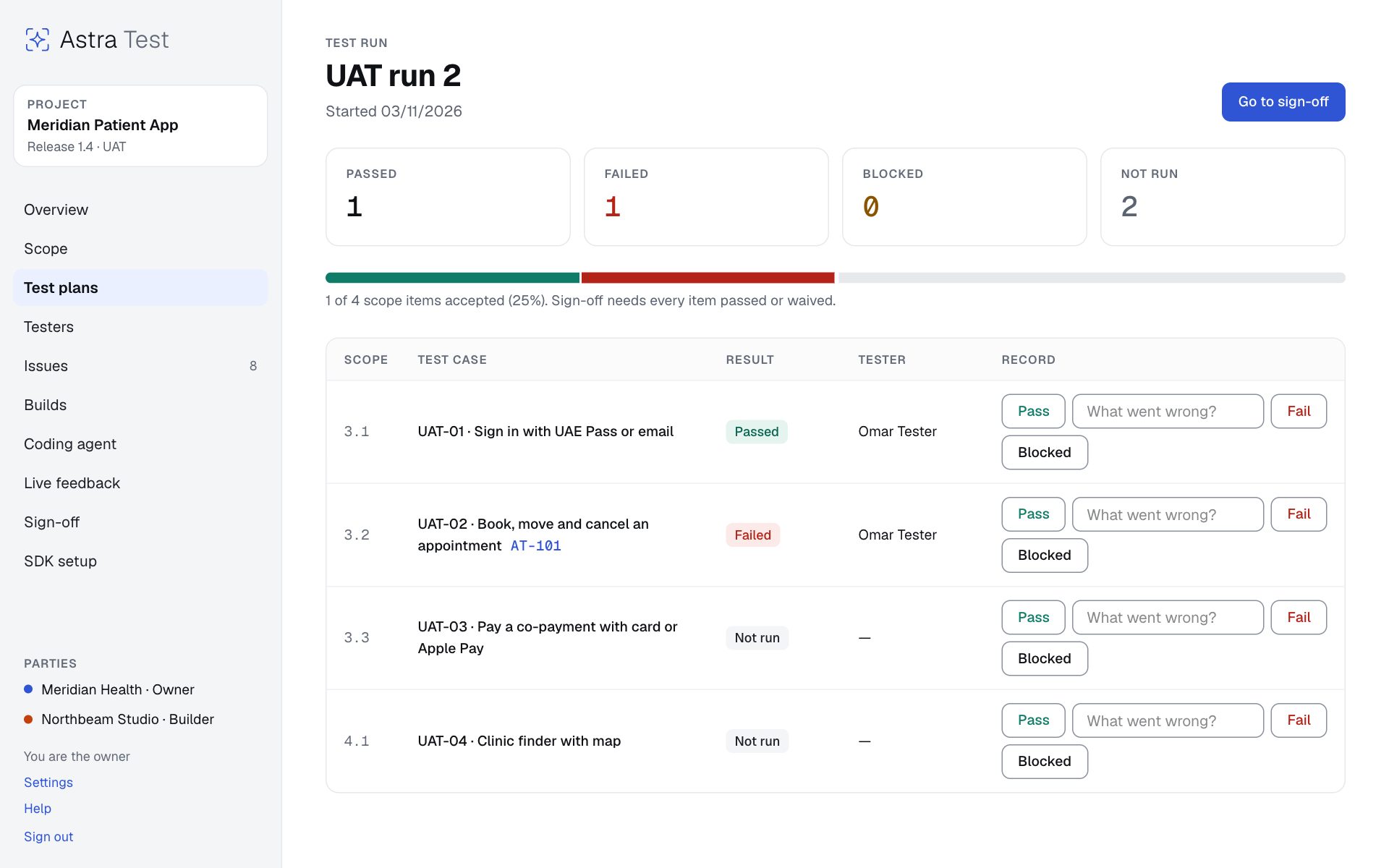
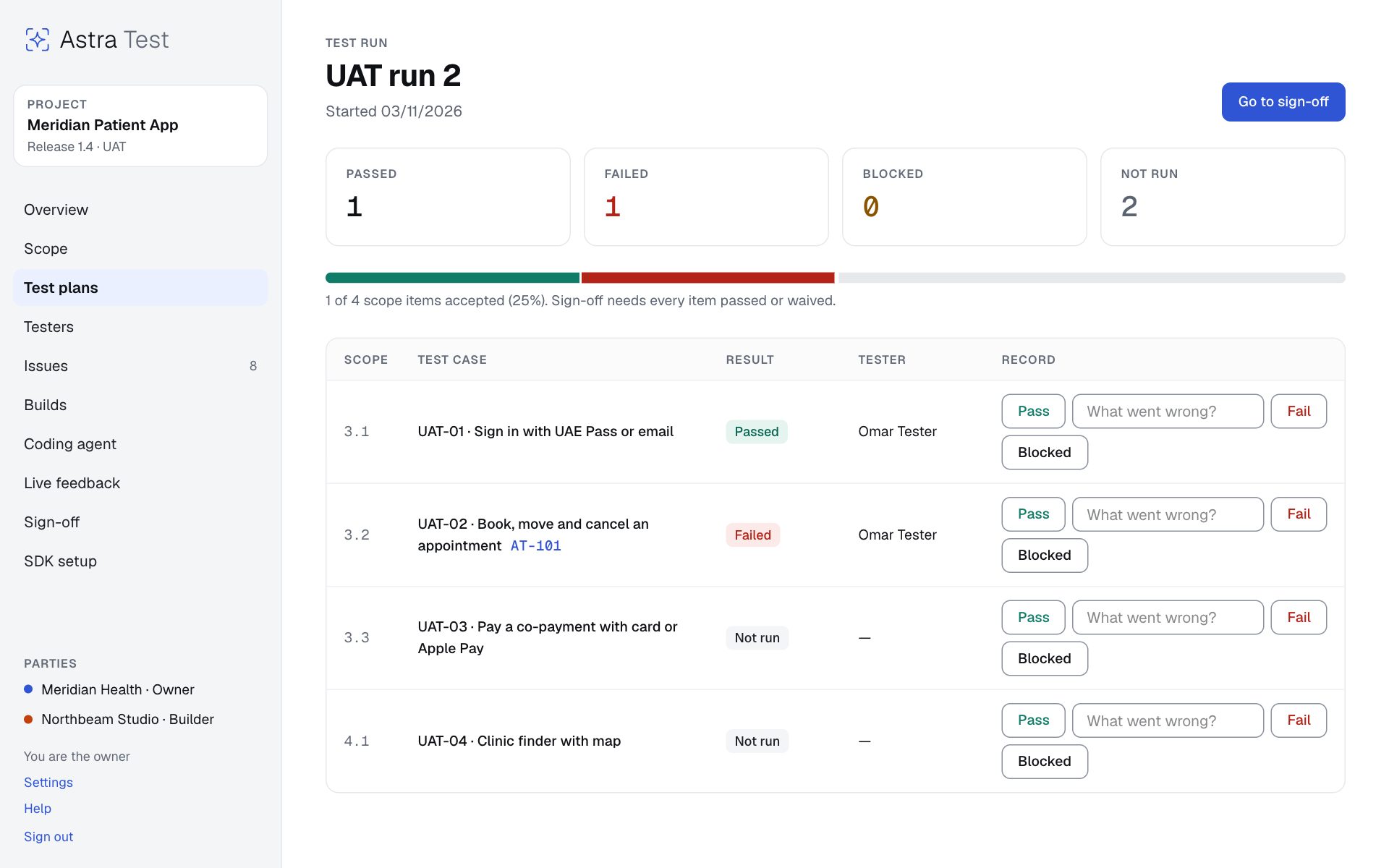
Where: My test cases → Open the run, /p/[id]/tests/run/[runId]
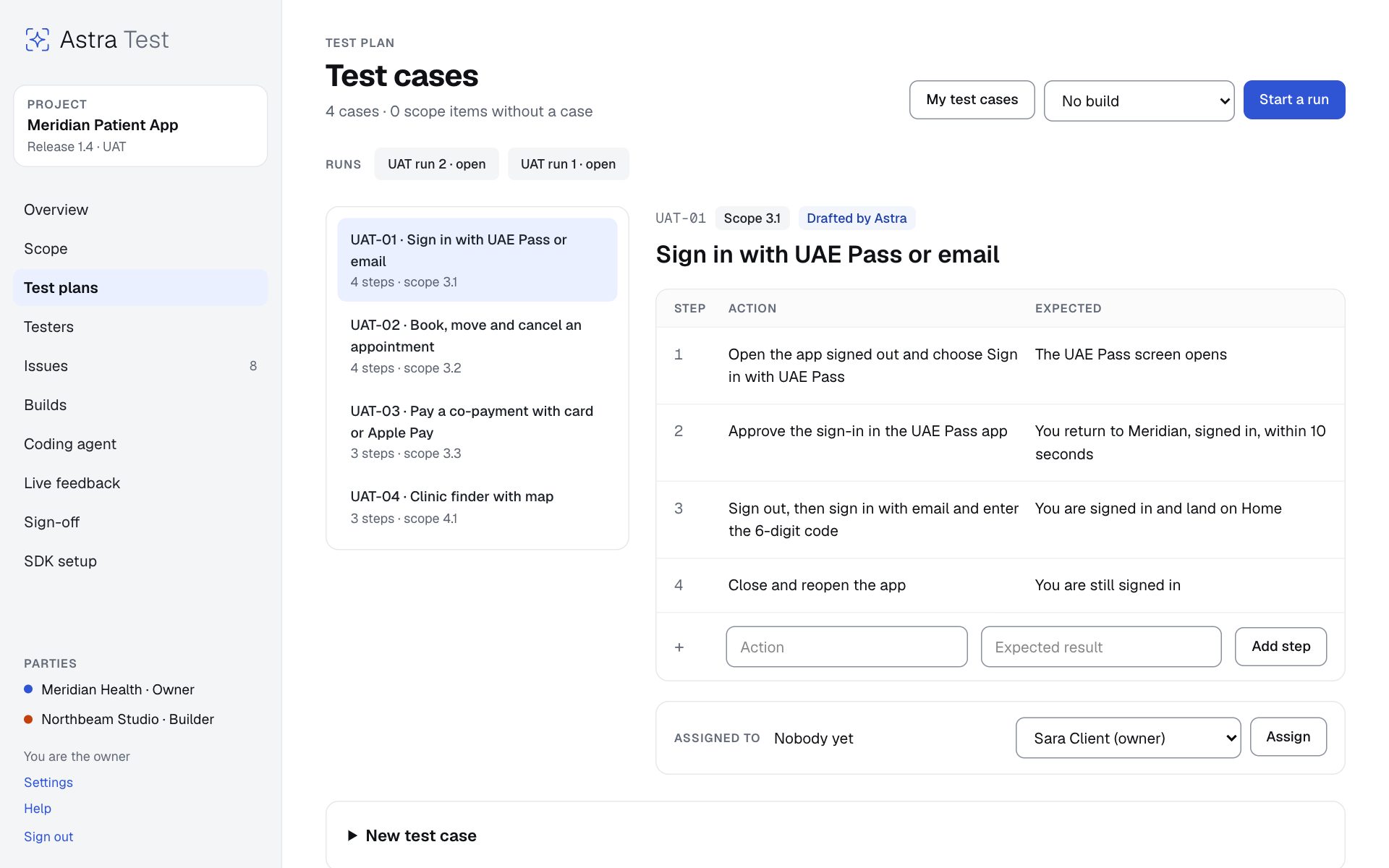
- To see a case's steps, open Test plans and select the case. Each step has an Action to do and an Expected result.
- Do the steps in the app.
- Back on the run, record the result next to the case:• Pass: everything matched the expected results.• Fail: something didn't. Describe it in What went wrong? first, then choose Fail. An issue is created automatically and linked to the case.• Blocked: you couldn't run the case, for example because the screen wouldn't load.
Report an issue from inside the app#
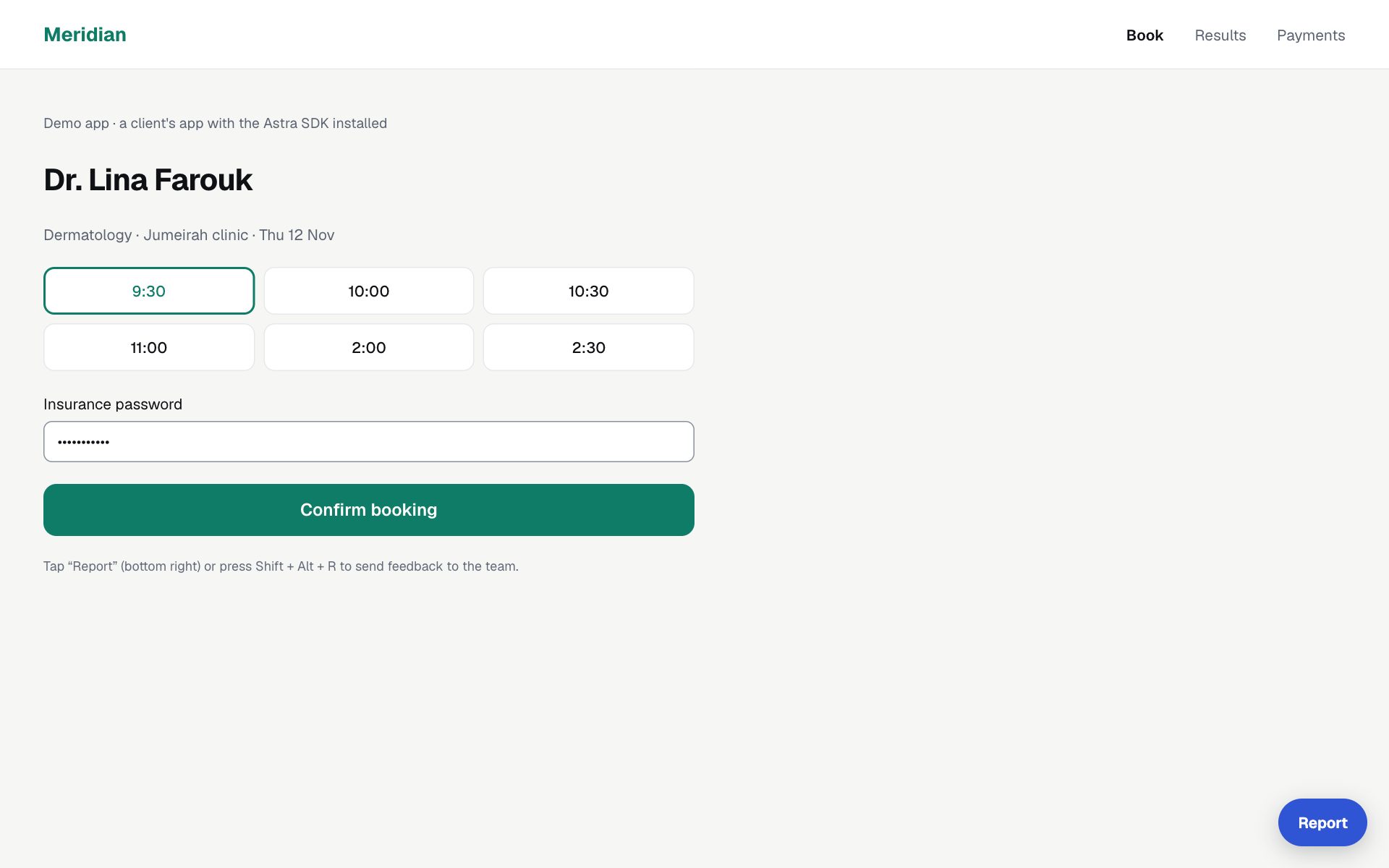
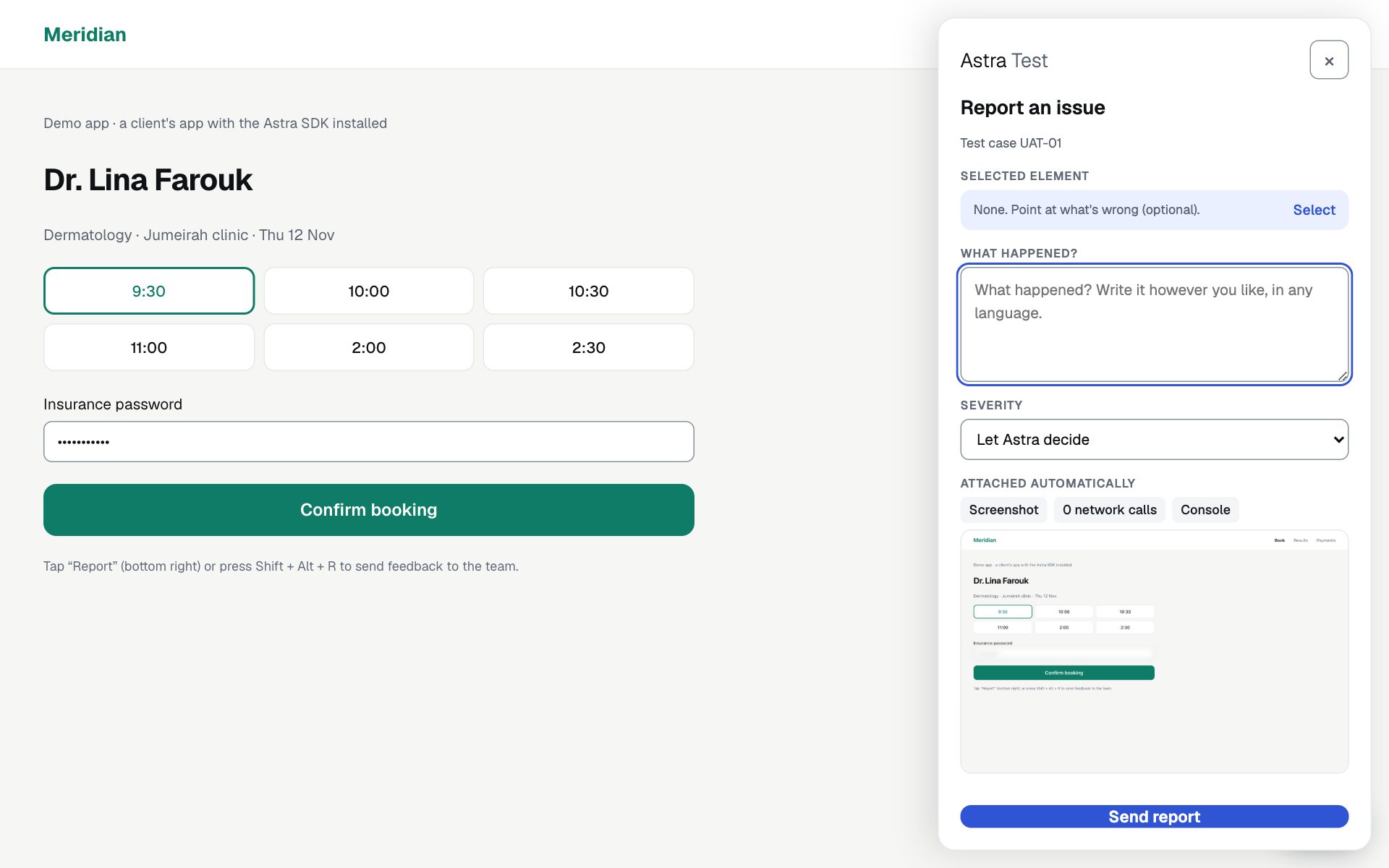
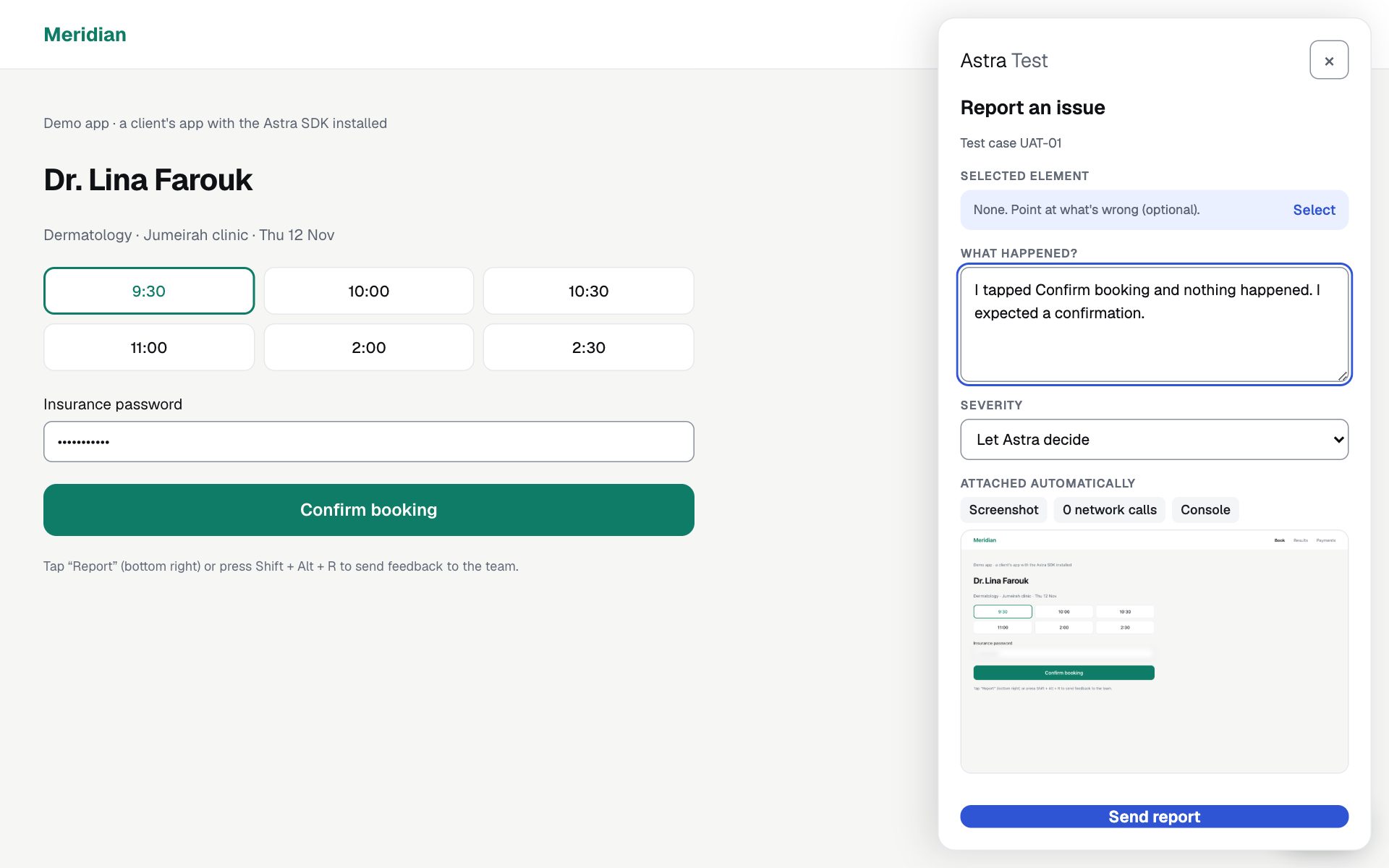
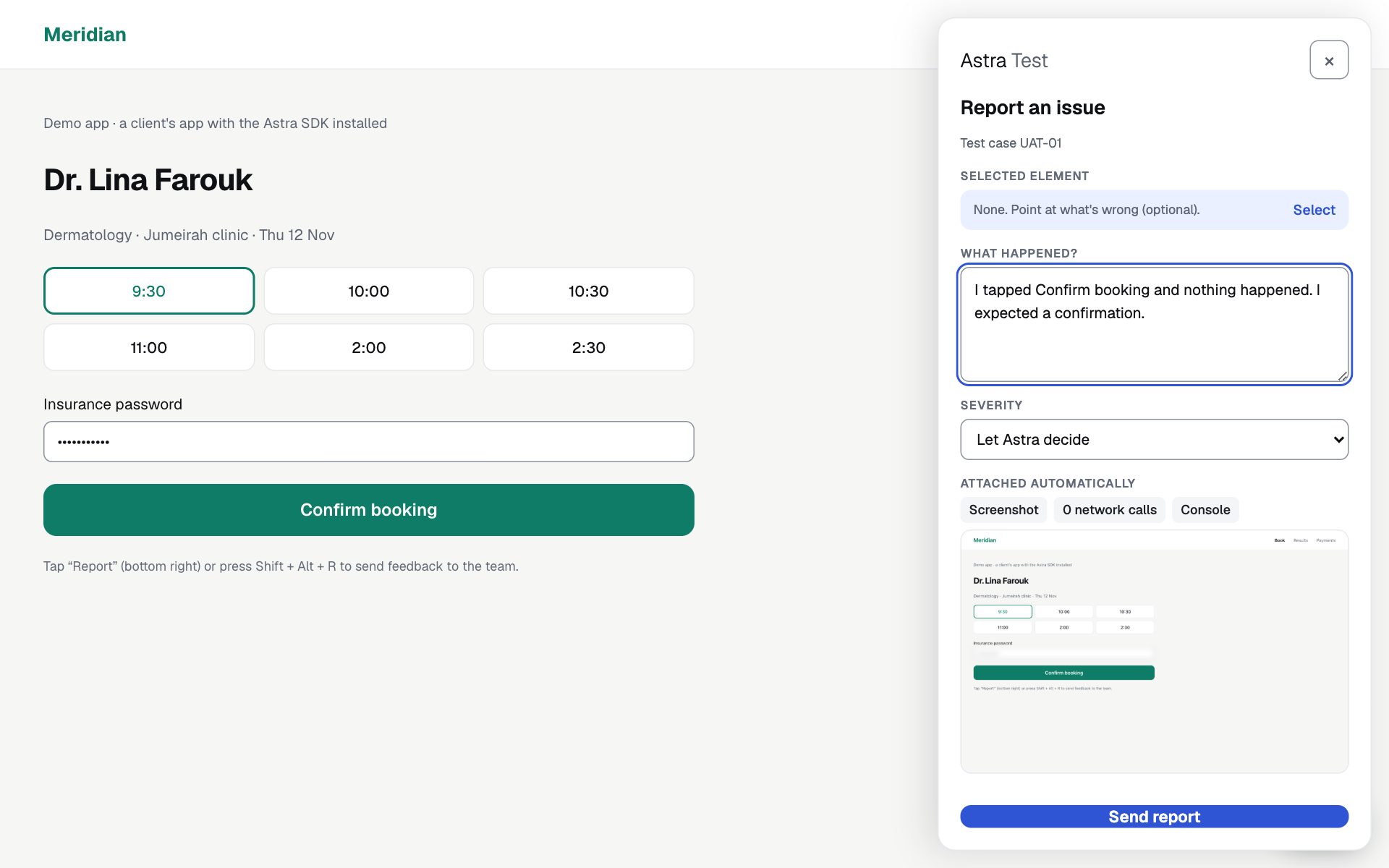
This is the quickest way to report, and it gives the agency everything they need.
- In the app, choose the Report button in the bottom-right corner. On the web you can also press Shift + Alt + R; in iPhone and Android apps you can shake the phone; in Mac apps, press ⇧⌥R.
- Optional: under Selected element (on the web) or Point at it (in apps), choose it and tap or click the part that's wrong. Press Esc or Cancel to stop.
- Under What happened?, write it however you like, in any language.
- Leave Severity on Let Astra decide, or pick Blocker, Major, Minor or Cosmetic.
- Choose Send report.
You'll get a reference like AT-104 and a link to the issue.
Report an issue from the website#
Use this when the problem isn't on a screen of the app, for example an email that never arrived.
Where: Issues → New issue, /p/[id]/issues/new
- Fill in the Title and What happened?
- Pick a Severity and Type (Bug, Change request or Question). Optionally pick the Scope item it relates to.
- Choose Submit.
Follow up on your reports#
Where: Issues, /p/[id]/issues, then any issue
You can follow each report as it moves through New, Triage, In progress, Ready to verify and Closed.
Choose Open the page on an issue to go back to where you found the problem, in a new tab. The part you pointed at is outlined. When the team says it's fixed, the button reads Check on the page, and the bar at the top of the page lets you answer Yes, it's fixed or No, still broken right there.
On an issue, you can add a Comment, for example to answer a question from the agency. Severity, scope and assignment are set by the client and the agency.
Confirm a fix#
When the team marks something you reported as fixed, you receive an email Your report "[title]" is ready to verify with a link to check the fix. If the fix includes a commit reference or summary, it appears in the email so you can see what changed. You're then asked whether it's fixed for you:
- By email: open Is it fixed for you?, try it, then choose Yes, it's fixed or No, still broken. You can add a note. No sign-in needed.
- In Astra Test: your issue shows a Fix card at the top (when the team attached a commit, summary, or proof screenshot) and the same question while it's Ready to verify.
Sign in or create an account#
See Sign in or create an account.
On a phone#
Astra Test works in your phone's browser. The menu sits behind the ☰ button at the top left, next to the project name; tap it to move between pages. Tables show as one card per row, and on the Issues board you swipe sideways between columns.
Turn on the Report button in a web app#
If you don't see a Report button in the app you're testing, the team has limited reporting to people in the project. Either:
- Choose Open the app to test on the project's Overview in Astra Test. The app opens with the button on, in that browser, for 30 days.
- Or, in the app, press Shift + Alt + R. A small Astra Test window opens (
/report-access); sign in, check the site's address, and choose Turn on reporting.
Your reports are sent under your name. The button stays on in that browser while you keep using it, and signing out of Astra Test turns it off everywhere.